![owl-Logo-1.png]](https://help.lendingwise.com/hs-fs/hubfs/owl-Logo-1.png?width=43&height=46&name=owl-Logo-1.png)
A term sheet summarizes the loan using the data on the loan file's Loan Info tab. You can open it in two places.
Open the term sheet
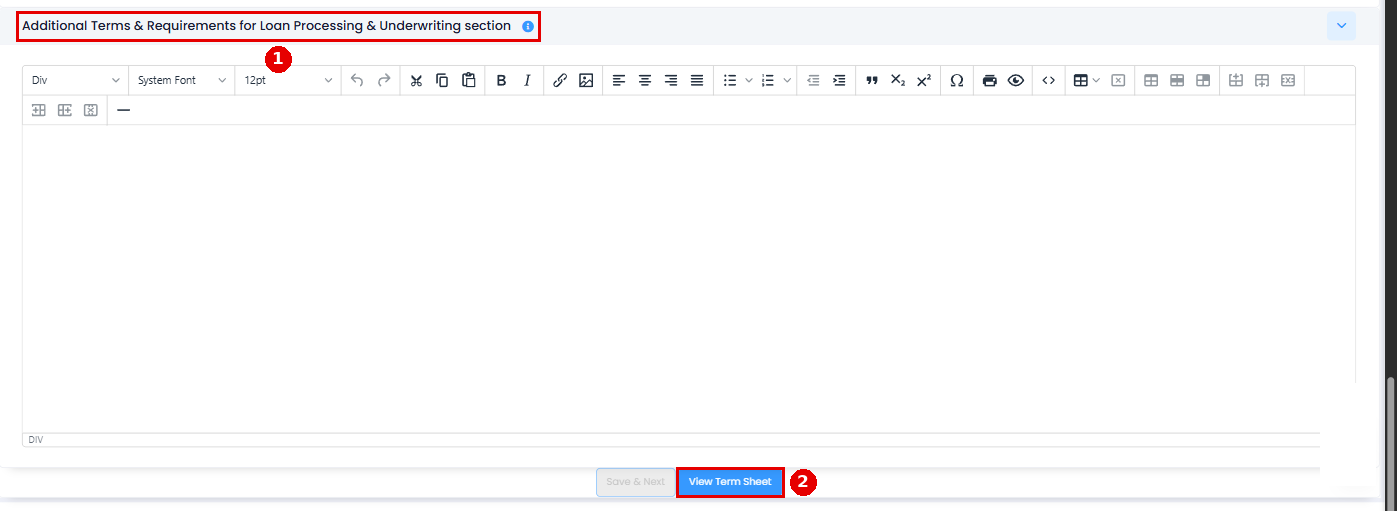
- From Loan Info: open the loan file's Loan Info tab, scroll to the bottom and click View Term Sheet.
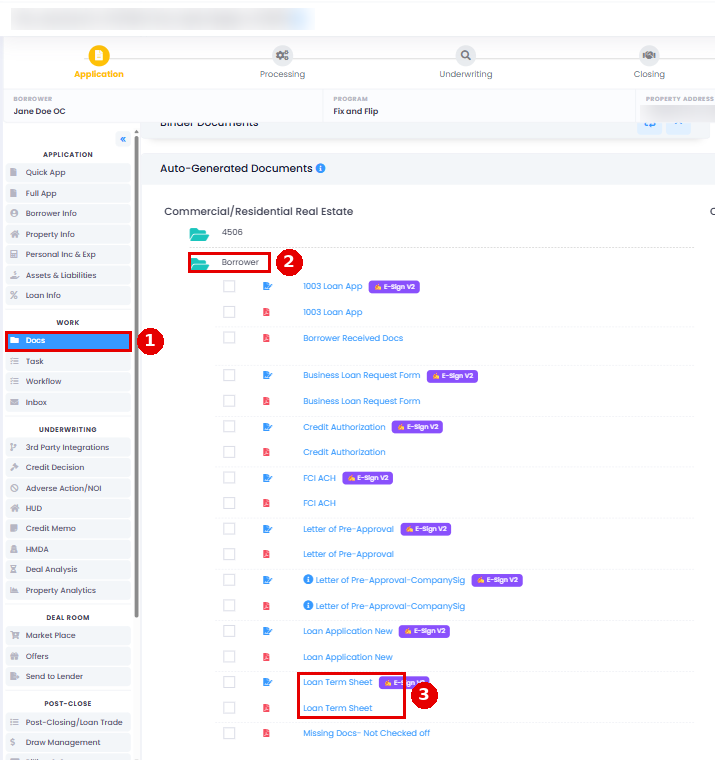
- From Docs: open the loan file's Docs tab, scroll to Auto-Generated Documents and find Loan Term Sheet. There's also an E-Sign V2 version for sending it for signature.
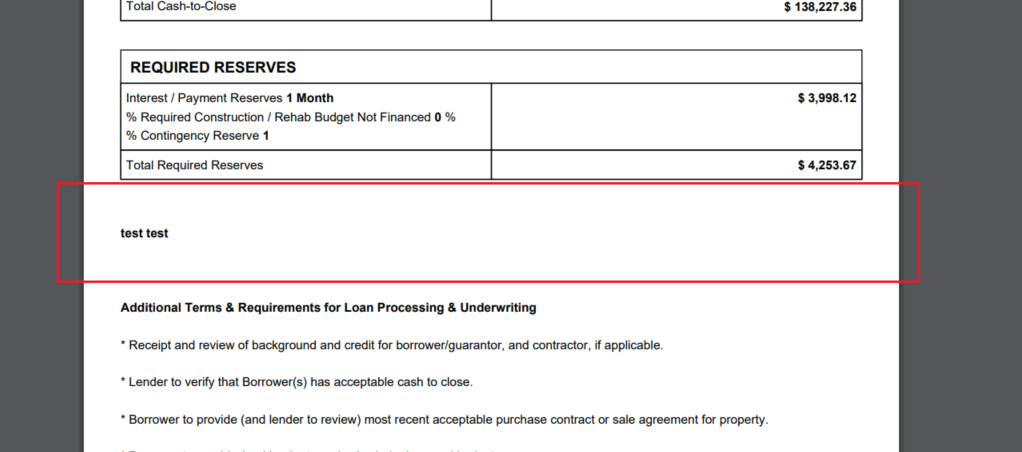
Either way, you'll get a document like this sample.
The term sheet is built from your Loan Info data and can't be edited directly. If you need a different layout, build your own term sheet template in Settings > Doc Wizard Tool, then turn it on for each branch in CRM > Branch > Branch List > (branch) > Docs Library.
To send it for signature, see E-Sign: send, sign, and track documents.
Add your own notes to the term sheet
You can add notes to the term sheet for your borrower to review and sign.
- On the Loan Info tab, go to the Fees & Costs section and find "Lender notes on closing costs and any additional fees."
- Type your notes and tick "Include notes on term sheet?". If it's not ticked, the notes won't show on the term sheet.
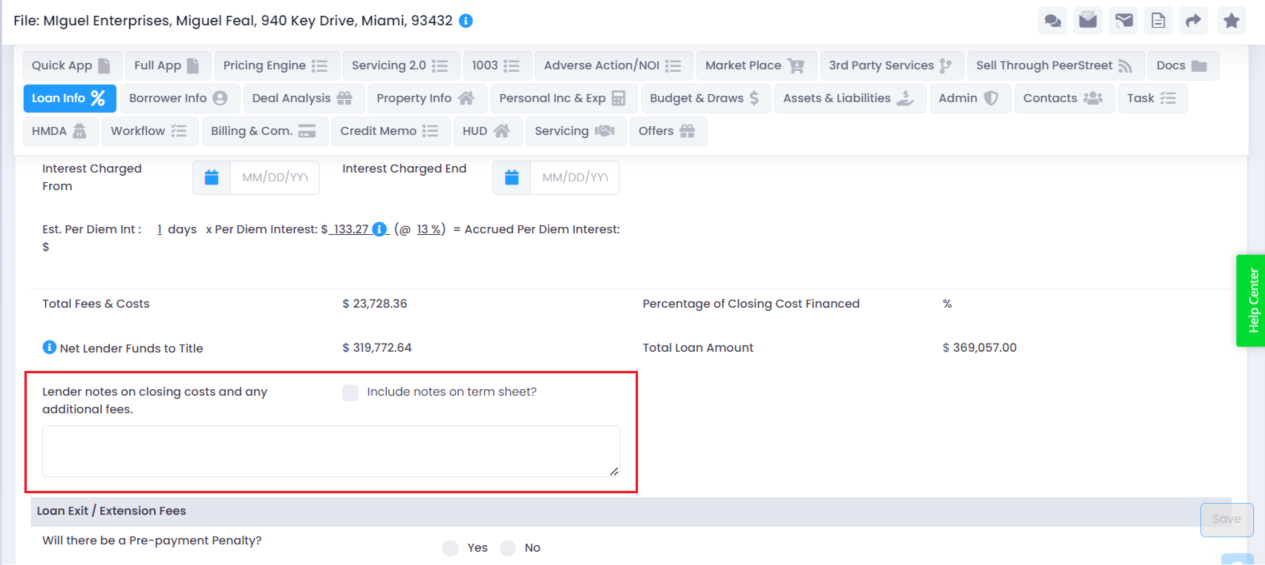
- Click Save. Your notes now show on the term sheet.
Questions? Email helpdesk@lendingwise.com.