![owl-Logo-1.png]](https://help.lendingwise.com/hs-fs/hubfs/owl-Logo-1.png?width=43&height=46&name=owl-Logo-1.png)
Go to Settings > Automation > Activity Log (page heading "Automated Activity Log") to see every automation that ran. Filter with Search Text and Select Field To Search (File Id, Borrower First Name, Borrower Last Name, Borrower Email, Property Address, Loan Number), Actions, Action Type (Instant, Schedule), Status (Cancelled, Completed, Failed) and Select Date. Each row shows the Rule, Borrower Info, Event Name / Type, Created Date Time (EST), Scheduled Date Time, Status and Response, 20 rows per page. Failed rows show in red. A Failed row saying the email was already sent or the task was already created is normal for rules that don't repeat. "Cancelled by user" means someone saved a change and clicked CANCEL in the automations pop-up. The log has no export. The video below walks through it.
Check it out!
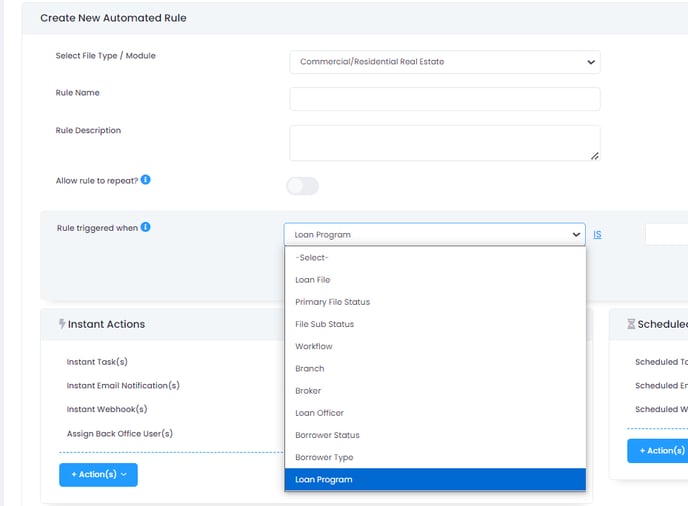
10/22/2024 - New trigger events for Automation v2.
We have added trigger events on the loan file, loan officer, broker, borrower status, branch and borrower type.