![owl-Logo-1.png]](https://help.lendingwise.com/hs-fs/hubfs/owl-Logo-1.png?width=43&height=46&name=owl-Logo-1.png)
**Company Info** section stores contact info at the company level. This info can be used as merge tags on custom docs or email templates.
**Company Settings**- These settings are now on their own page: Settings > Platform Settings > Company Settings. One Save button at the bottom of that page saves every card on it.
* E-mail handling set the from name on outbound emails. The recommended choice is the system address, with replies and bounces going to the user. Sending from your own name and email needs DKIM and SPF set up first, or your emails may land in spam.
* Show system-generated notes- If enabled, the note history will display all the system-generated notes like when a user changes the status, sub status uploads a doc, etc...
* Show file status in dashboard- If disabled, will hide the aggregate loan volume for each loan stage. To remove certain stages only, go to Settings > Platform Settings > File Status and click any status to see more settings.
* Use auto-generated loan numbers- The system can create unique, sequential loan numbers for loan files. Users will need to click a button inside the loan file to generate the loan number. It does not auto-generate on initial creation of a loan file. You can set a starting loan number. FYI- We do have file id # that is unique for every loan file created.
* Peer Street Client ID/ Client Secret- If you have a peerstreet user id, you can enter it here, to submit loans & upload docs to their portal.
* Enter Emails for document information- Emails entered here, will always get real-time email notifications from docs that get uploaded by borrowers.
**Loan Servicing**- This section lets you create default loan servicing info, which can auto-populate using merge tags. Servicing 3.0 settings are in Loan Servicing > Settings & Borrower Portal.
**Billing fees**- These fee types display in the billing tab of a loan file. It allows you to track different types of fees payable by the borrower.
**Note Types**- These note types are drop-downs in the note history for a loan file. When you make a note inside a loan file, it will ask What type of note? This separates the notes by these categories.
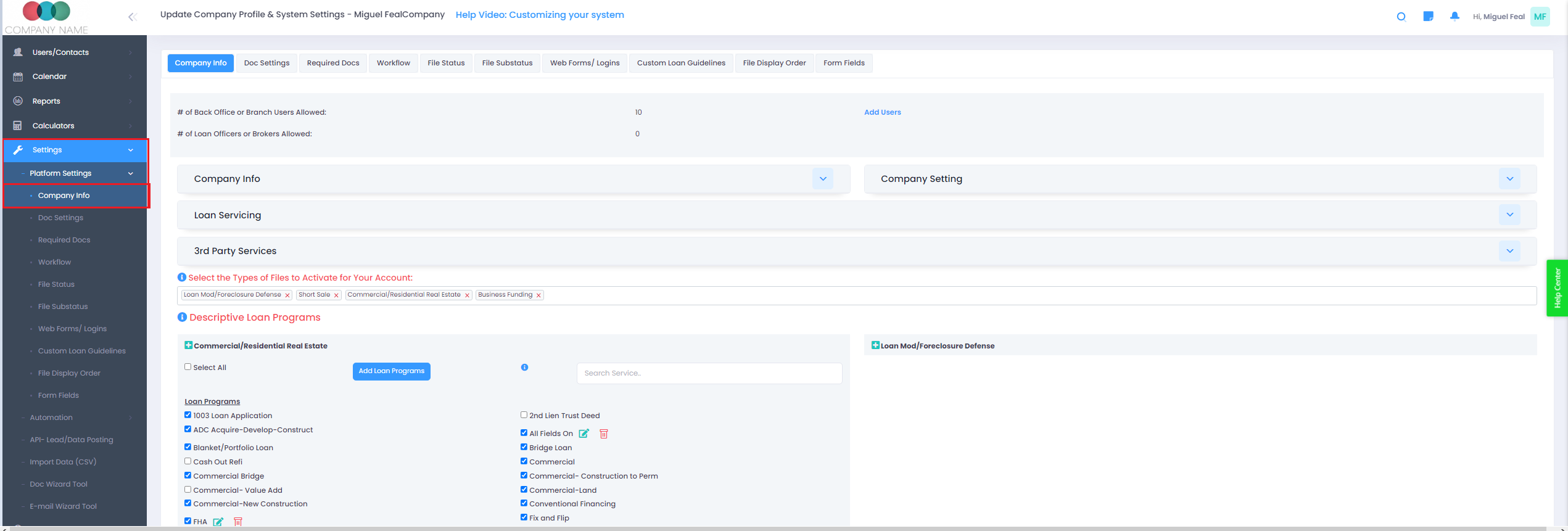
Also on Company Info: Enable Loan Programs (turn loan programs on for each file type), Custom domain (set up your own domain with Provision), and the loan identifier used for MIN auto-generation.