![owl-Logo-1.png]](https://help.lendingwise.com/hs-fs/hubfs/owl-Logo-1.png?width=43&height=46&name=owl-Logo-1.png)
Handling loan files effectively is crucial for maintaining an organized and efficient lending process. LendingWise offers multiple options for creating or duplicating loan files for existing borrowers, so the documents and data you need carry over. This article will walk through these methods to help users manage borrower files with ease.
Duplicating Existing Loan Files:
-
Accessing the Loan File:
- Go to Loan Origination > Pipeline - Main and find the loan file you want to copy.
-
Copying the Loan File:
- Click the green folder icon on the file's row to open the More Actions panel, then click the copy icon ("Click to copy this file"). Or open the loan file and, in the menu on the left under TOOLS, click Copies > Copy This File.
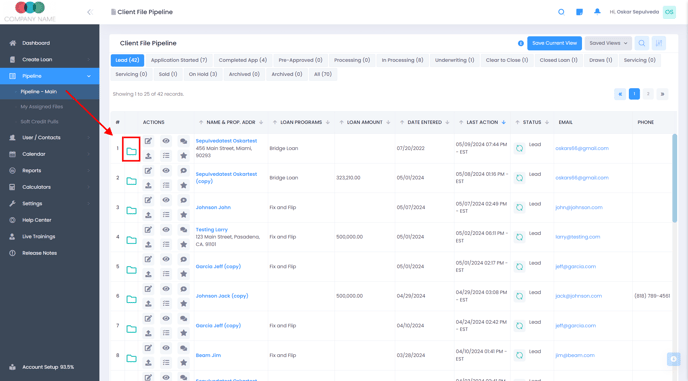
- Click the green folder icon on the file's row to open the More Actions panel, then click the copy icon ("Click to copy this file"). Or open the loan file and, in the menu on the left under TOOLS, click Copies > Copy This File.
-
- Choose WITH DOCS to bring over the uploaded required documents, WITHOUT DOCS to leave them out, or CANCEL.
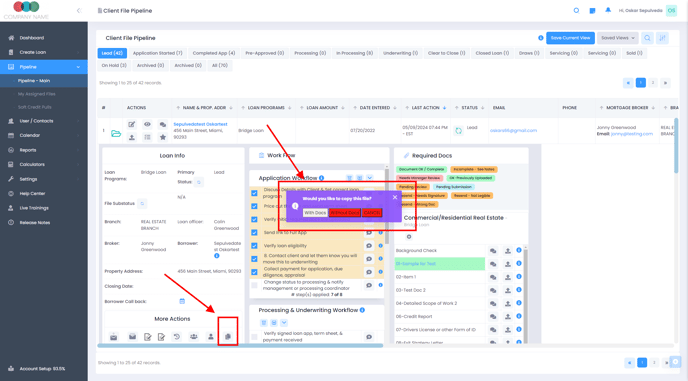
- The copy opens in the same tab, with "(copy)" added to the borrower's First Name. Users without Manager permissions don't get TOOLS > Copies, even with "Allow to Copy file?" on.
- Choose WITH DOCS to bring over the uploaded required documents, WITHOUT DOCS to leave them out, or CANCEL.
-
Editing the Copied File:
- Enter the duplicated file to modify or delete old documents and update details relative to the new loan.
Creating a New Loan File from Borrower’s Contact:
-
Navigating to Borrower List:
- Go to CRM > Borrowers > Borrower List, find the borrower, and click the Create New File icon in the Actions column.
-
Importing Borrower Information:
- Once selected, you will be prompted to import basic information from the existing borrower profile.
Alternative Method Using Quick App:
-
Filling a New Application:
- Access the Quick App (either in your back office for staff or the public interface for borrowers).
- When you type an email that matches an existing borrower, you're asked "Would you like to import basic information for this borrower?" Click YES to import. NO clears the email box, so a new borrower can't reuse an existing borrower's email.
-
Secure Confirmation:
- If the borrower says yes, the borrower receives a one-time passcode via email to confirm the import of their information into the new loan application.
LendingWise gives you several ways for managing loan files for existing borrowers. Whether duplicating detailed files or creating streamlined new entries from minimal data, the platform caters to diverse operational needs. This article aims to simplify these processes, so users can adapt quickly and focus on providing top-tier lending services.
For a visual guide, refer to our tutorial video above, or the step-by-step walkthrough guide below. For any additional assistance, feel free to contact the LendingWise support team at helpdesk@lendingwise.com