![owl-Logo-1.png]](https://help.lendingwise.com/hs-fs/hubfs/owl-Logo-1.png?width=43&height=46&name=owl-Logo-1.png)
E-Sign V2 lets you set up a signable document yourself and send it from the loan file, without having it built for you first. It sits alongside the e-sign tools you already have rather than replacing them: the older e-sign flow, webform e-sign and emailed e-sign docs keep working, and different people on your team can use different ones.
Who can send envelopes
E-Sign V2 is already switched on for your account. What you control is who can send. The switch is Enable E-Sign V2, in the Documents and Notifications section of each user's profile, and the defaults are cautious so nobody gets access by surprise.
| User type | Default |
|---|---|
| Back office (employees, managers, the Super role) | On |
| Branch users | Off, opt in |
| Loan officers | Off, opt in |
| Brokers | Off, opt in |
| Borrowers | Never. They only sign |
The switch controls the Open E-Sign Workspace button. Someone who can't send can still view signed documents, based on their normal document permissions. If the button is missing for everyone, even a user whose profile has the switch ticked, check that "Enable E-Sign V2" is on in Settings > Platform Settings > Company Settings. When that company switch is off, the button is hidden for everyone.
Build and send an envelope
Before you start, check that everyone who needs to sign has a name and a valid email address on their record. Signers come straight from the loan file, and a blank name shows up blank on the envelope and the certificate.
1. Open the workspace
Click the Open E-Sign Workspace icon in the loan file header (the third icon), or the Open E-Sign Workspace button on the Docs tab. That button is in two section headers, Uploaded Files, Documents and Auto-Generated Documents; both open the same picker. If the Docs tab is a long scroll, Open/Close All Sections (menu on the left, under TOOLS) collapses everything so both are visible.
2. Pick your documents
The picker lists every document on the loan, grouped by source: Uploaded, Doc Wizard and Doc Library. Each source is a filter you can switch off. Tick as many documents as you want, from any mix of sources, and search by name if the list is long.
A pen icon next to a document means e-sign fields are already placed on it, usually because it came from a Doc Wizard template. Anything else starts blank and you place the fields yourself. Doc Wizard templates can take 20 to 60 seconds each to prepare.
What can be signed: PDFs, Word documents and images are fine; other formats are converted for you. Spreadsheets can't be signed, and neither can files saved without an extension. The picker greys those out and says why, for example "XLSX files cannot be e-signed. Export to PDF first."
3. Put the documents in order
With two or more documents you get a reorder screen. Drag the rows into order, then click Continue. A single document skips this step.
Continue creates a draft. The envelope exists as a Draft with its own number as soon as you continue, before you save or send anything. If you were only looking, delete it from the E-signed Documents table so it doesn't clutter the file.
4. Place the fields
The packet shows on the left, with signers and field types on the right. Click a signer's row first, then drag a field onto the page: it belongs to that signer and takes their color. Drag a corner to resize, or the field itself to move it. Signature, Initials and Date are always required; Text and Checkbox can be optional.
Signers are filled in from the loan file: Borrower and Co-Borrower, any guarantors and entity members, and the Broker, Loan Officer and Branch assigned to the file. Use Add signer for anyone else, such as a CPA or a witness, and the × to remove someone.
- Check the signer list before you send. Signer emails can't be edited in the workspace, only added or removed, and a removed signer's signature box stays on the page until you delete it.
- You only get a signer for a role the file has filled in. A file with a co-borrower and a loan officer gives five signers; a file with neither gives three. Nothing depends on the loan program or transaction type, so if a signer is missing, check the file's parties and assignments.
- If the file has no broker, a placeholder broker signer can appear. Remove it.
Order starts at Any on every signer, so they can all sign at the same time. Change it to set a sequence.
5. Set the email, expiry and reminders
At the bottom of the workspace, edit the subject (it starts as "Please sign: Envelope #" plus the number) and add an optional message. Set Expires in, which defaults to 7 days. Switch on automatic reminders and choose how many to send and how many days apart; anyone who has already signed is skipped.
Reminders are off by default. Envelopes expire after 7 days, so without reminders an envelope can quietly expire without the signer ever being chased. Turn them on for anything time sensitive.
6. Send
Click Send for signing. You need at least one signer, at least one placed field, and a valid email for every signer who has a field; the system checks all three and tells you what's missing. Save draft keeps the envelope as a draft to finish later.
What signers see
Signers get an email with a button that opens a mobile-friendly signing page. They don't need a LendingWise account. They see the whole packet, with their own fields highlighted and everyone else's greyed out, and can Finish Signing or Decline. Signatures and initials can be drawn or typed in a script font, and anything can be redone until they finish.
To check your field placement first, click Save draft, then Preview from the envelope details window. Preview opens under your own login, sends no email and records nothing against the signers.
Access to the signing page
E-Sign V2 doesn't ask the signer for a password or code. The link in their email is what grants access.
If you used the older e-sign flow, this has changed. That flow asked signers for a password, the last four digits of their SSN, or 0000 when no SSN was on file. E-Sign V2 doesn't. Stop putting password instructions in your emails and stop telling borrowers to expect a prompt.
Because access depends only on the link, anyone holding it can sign in that person's name, so a forwarded email is effectively a forwarded signature. Resending doesn't help, since it sends the same link. If a link reaches the wrong person, void the envelope. That's the only action that kills a link.
Track and manage envelopes
Every envelope shows in the E-signed Documents card on the Docs tab, under E-Sign V2, All Envelopes, with its subject, status, sent and signed dates, and how many signers have finished.
| Status | Meaning |
|---|---|
| Draft | Saved but not sent. Resume to keep editing |
| Sent | Out with all signers, nobody has signed yet |
| Partially Signed | At least one signer has finished |
| Completed | Everyone has signed. The signed document is filed in Uploaded Files |
| Voided | Cancelled by you or by a signer who declined. Every link is dead |
| Expired | The expiry date passed. Pending links no longer work |
Show voided & expired and Show archived are both off by default, so tick them if an envelope seems to have vanished. Your browser remembers your choices.
Click a row to open Envelope Details, which shows the reference ID, the signer list and the audit log without changing anything. For a signer who hasn't finished, you can resend the invitation (the same link again) or change their email (this doesn't resend on its own).
| Action | Available when | What it does |
|---|---|---|
| Resume | Draft | Reopens the workspace |
| Delete draft | Draft | Removes it. Field placements and signer setup are lost, and it cannot be undone |
| Void | Sent, Partially Signed | Cancels the envelope, kills every link, notifies the signers and you. Cannot be undone |
| Archive | Completed, Voided, Expired | Hides the row to reduce clutter. Reversible, and the signed document stays in Uploaded Files |
| View signed document | Completed | Opens the flattened signed PDF |
| Download Audit Certificate | Any | Generates the Certificate of Completion |
Archiving doesn't delete anything. It only hides the envelope row. The signed document stays in Uploaded Files until someone deletes it there.
Pre-place fields in Doc Wizard templates
You can put e-sign fields into a Doc Wizard template so they arrive already positioned. Insert the tags from the E-Sign Fields section of the merge-tag picker and save; a pen badge marks the template as e-sign enabled. Then open the workspace from Auto-Generated Documents and pick the template. LendingWise generates a copy for that loan with the fields placed and the tag text removed.
There are 30 tags: three field types across ten signer roles.
##ESign <Role> Signature##
##ESign <Role> Initials##
##ESign <Role> Date##
Roles are Borrower, CoBorrower, Guarantor1 to Guarantor3, and EntityMember1 to EntityMember5. Text and Checkbox have no tags, so add those in the workspace after the document is generated. Field positions are worked out when the document is generated for a loan, not when you save the template, so they stay accurate even if content above them changes length.
When a role isn't on the loan: if a template has ##ESign Guarantor3 Signature## but the loan has only one guarantor, that field is created with nobody assigned. The workspace asks you to assign someone or remove it before you can send.
Audit trail and Certificate of Completion
Every action on an envelope goes into a log that can only be added to: created, sent, voided, expired and completed, each field filled in, each signer's IP address, browser and completion time, and any resends, email changes or archiving. The full log is in Envelope Details.
Download Audit Certificate (PDF) produces a branded Certificate of Completion with that log, a table of signers with their roles and signing times, the document subject and page count, your company name, and the envelope, loan file and borrower details. It saves as esign-certificate-ENV-XXXX-XXXX-XXXX-XXXX.pdf.
You can generate one at any stage. On an unfinished envelope it's stamped DRAFT with every signer pending, so only a certificate from a Completed envelope proves a finished signature.
The reference ID is safe to share. The certificate isn't. The reference ID on its own reveals nothing, so you can quote it in a support ticket. The certificate prints your company name, the loan file number, the borrower's name and every signer's email, so treat the PDF like any other loan document.
Who gets notified when a borrower signs
Notification emails go to the loan officer assigned to the file and to the branch's email address. To check or change who's assigned:
- Open the loan file and, in the menu on the left under ADMIN, click Admin (page heading File Info) and assign employees.
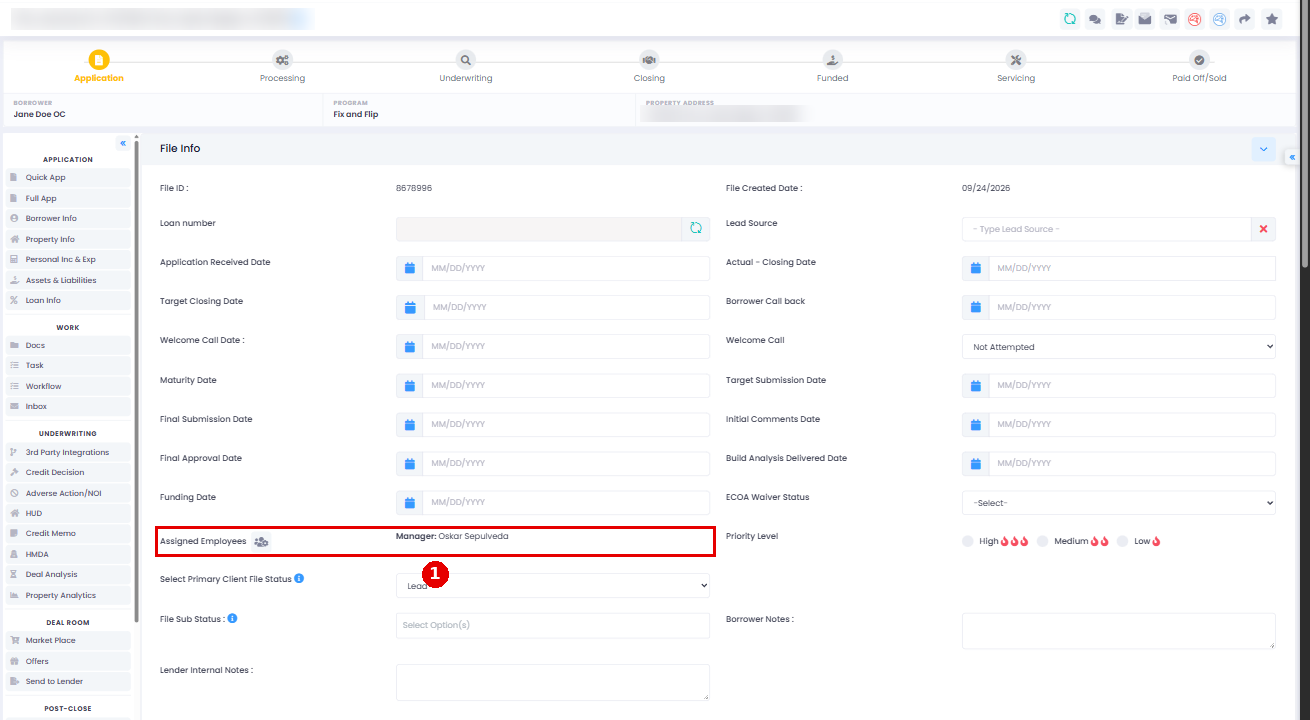
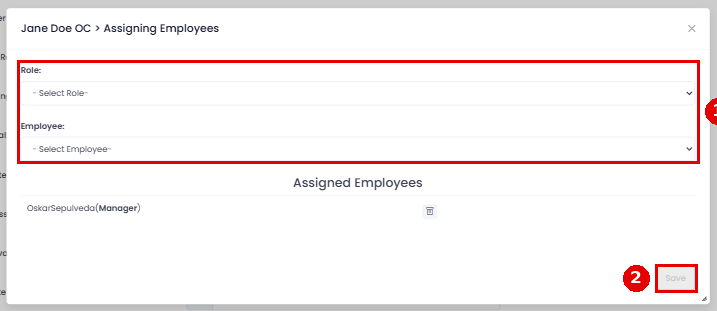
- Or in Loan Origination > Pipeline - Main, click the green folder on the file's row, then the employees icon ("Click to View/Assign Employee(s)").

Videos
Sending an e-sign version of the Term Sheet to a borrower (the same steps work for any document), what the borrower sees, and how to review the signed document. Note: this video shows the older Compose Email flow, which the E-Sign Workspace has replaced; follow the steps above.
Getting a borrower and co-borrower to sign: the draft fills in the borrower, broker and branch, so add the co-borrower if needed.
Frequently asked questions
Does E-Sign V2 replace the old e-sign system?
No. Both are available and both keep working, so use whichever suits the document.
Is the signing link password protected?
No. There's no password, PIN or code; having the emailed link is what grants access. The last-four-of-SSN prompt from the older flow no longer exists.
A signing link went to the wrong person. What do I do?
Void the envelope, then create a new one. Voiding is the only action that kills a live link. Changing the signer's email or resending doesn't, because the resend uses the same link.
Can I control the order people sign in?
Yes. Each signer has an Order setting, which starts at Any. Change it to set a sequence.
What happens if a signer declines?
The envelope is voided right away and every other link stops working. You get an email and the decline is recorded in the audit log.
Can I edit an envelope after sending it?
No. Void it and create a new one.
Can the signed document be edited afterwards?
No. It's flattened, so signatures, dates, text and ticks are part of the page and no fillable fields remain.
Can signers sign on a phone?
Yes. The signing page is built for mobile, including the signature pad.
If something goes wrong, contact LendingWise Support with the envelope's Reference ID from the details window, what you were trying to do, and whether it affects the sender or the signer. You can also email helpdesk@lendingwise.com.