![owl-Logo-1.png]](https://help.lendingwise.com/hs-fs/hubfs/owl-Logo-1.png?width=43&height=46&name=owl-Logo-1.png)
The investor portal lets your investors sign in and see their own positions, documents and open offerings. They only ever see their own money, never other investors or your back office. The portal is part of the Fund Management full plan.
New to Fund Management? Start with Fund Management: getting started.
Invite an investor
There's no public sign-up for existing investors. You invite each one.
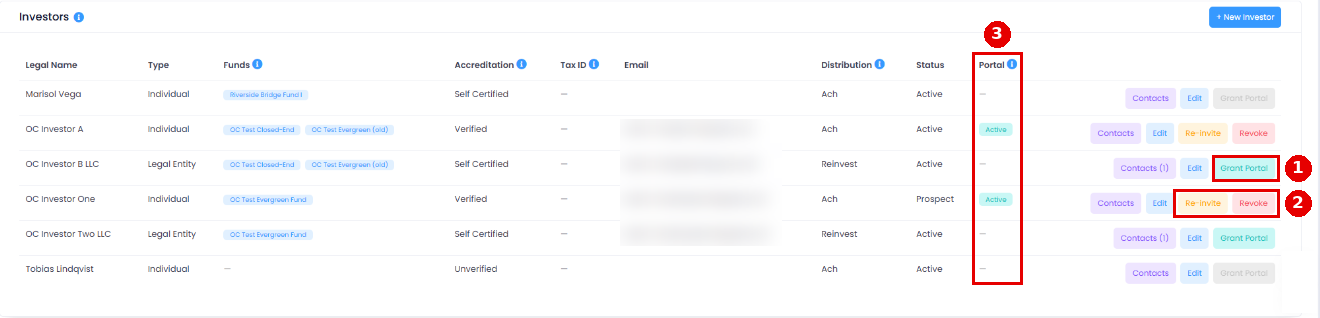
- Go to Fund Management > Funds and scroll down to the investors list.
- Make sure the investor has the right email address saved. The invite goes out as soon as you confirm.
- Click Grant Portal on their row and click OK.
The investor gets an email from "Investor Portal" with the subject "Your investor portal access" and a Set your password link. The link works once and expires after 7 days. Their password must be at least 10 characters. Once it's set, they're signed straight in.
The invite email and the set-password page don't show your company name. Your logo and name appear once the investor is signed in. Let each investor know the email is coming before you click Grant Portal, so they don't mistake it for spam (our recommendation).
The green message in LendingWise also shows the one-time link, in case the email doesn't arrive. That link sets the investor's password, so treat it like a key. Only send it straight to the investor, and close the message when you're done (our recommendation).
Re-invite and Revoke
Once an investor has access, their row shows Re-invite and Revoke instead of Grant Portal.
- Re-invite sends a fresh set-password link. Any older link stops working. It doesn't sign the investor out, and their current password keeps working until they use the new link. Use it when the first email expired or got lost. The email is the same "You have been granted access" invite, so tell the investor why they're getting it (our recommendation).
- Revoke turns off their sign-in. It doesn't touch any fund data. The investors list shows their portal access as Disabled.
- To turn access back on, click Grant Portal again. Their old password works straight away. They'll still get the invite email, so let them know they can ignore it.
A few things to know about Revoke:
- It blocks new sign-ins only. An investor who is already signed in keeps access, including the Subscribe box, until they sign out or their session ends. If you need someone out right away, contact LendingWise support, and decline any subscription request from a revoked investor (our recommendation).
- A revoked investor sees "Invalid email or password." when they try to sign in. It doesn't say their access was turned off, so expect a call.
- A revoked investor can't get back in with Forgot your password. No reset email goes out.
Logins for people at an entity
For an entity investor, click Contacts on the investor's row, then Grant Portal on any contact with an email. That person gets their own login and sees the entity's position.
One email address means one login. If the same email is on several investor records (for example someone who invests personally and through an IRA), they get one login that shows every position. Revoking a shared login affects everyone using it. The back office warns you when an email is already in use.
Forgot password
On the sign-in page, investors can click Forgot your password, or didn't get your invite? and enter their email. If that email has portal access, they get a link to set or reset their password. If they were invited but never set a password, it resends the invite. The message on screen is the same either way, so it never reveals who is an investor.
What your investors see
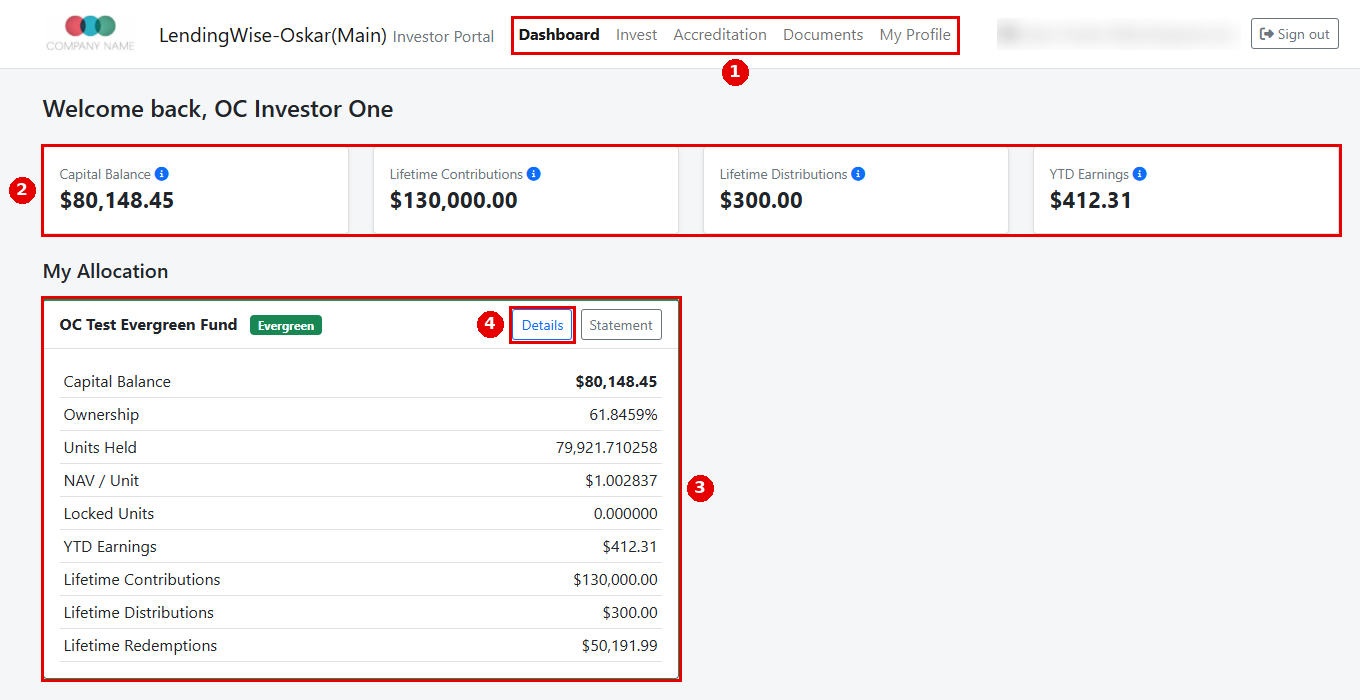
The portal menu has Dashboard, Invest, Accreditation, Documents and My Profile.
- Dashboard shows their capital balance, lifetime contributions, lifetime distributions and year-to-date earnings. Each fund they hold has its own card with ownership, units held and price per unit (evergreen), locked units and lifetime redemptions, plus a Details button. Recent transactions are listed underneath. The figures come from the same ledger as your back office.
- Details adds accrued income, lifetime earnings and the full transaction list.
- Invest shows offerings you've published. See "Taking new money through the portal" below.
- Accreditation is where they confirm they're an accredited investor.
- Documents lists everything you've shared with them. Until you share something, it says nothing has been shared yet.
- My Profile lets them update their display name, phone, mailing address and how they get statements. Legal name, tax, banking and accreditation details stay with you.
Investors only see a fund when they hold a position in it.
When part of a redemption is held back (gated), the investor's portal doesn't show those held-back units, and Pending Redemption on their Details page shows a dash. Tell the investor about any gated amount yourself (our recommendation).
Share documents with investors
- Go to Fund Management > Documents and check the Fund picker at the top.
- Click Upload a document. Give it a title and a category (Statement, Tax, Report or Other).
- Choose one investor, or the whole fund (every investor in it).
- Decide on Email investor(s). It starts ticked, so untick it if you don't want an email to go out.
- Upload.
Use this for your offering documents, subscription agreements and operating agreement.
Accreditation
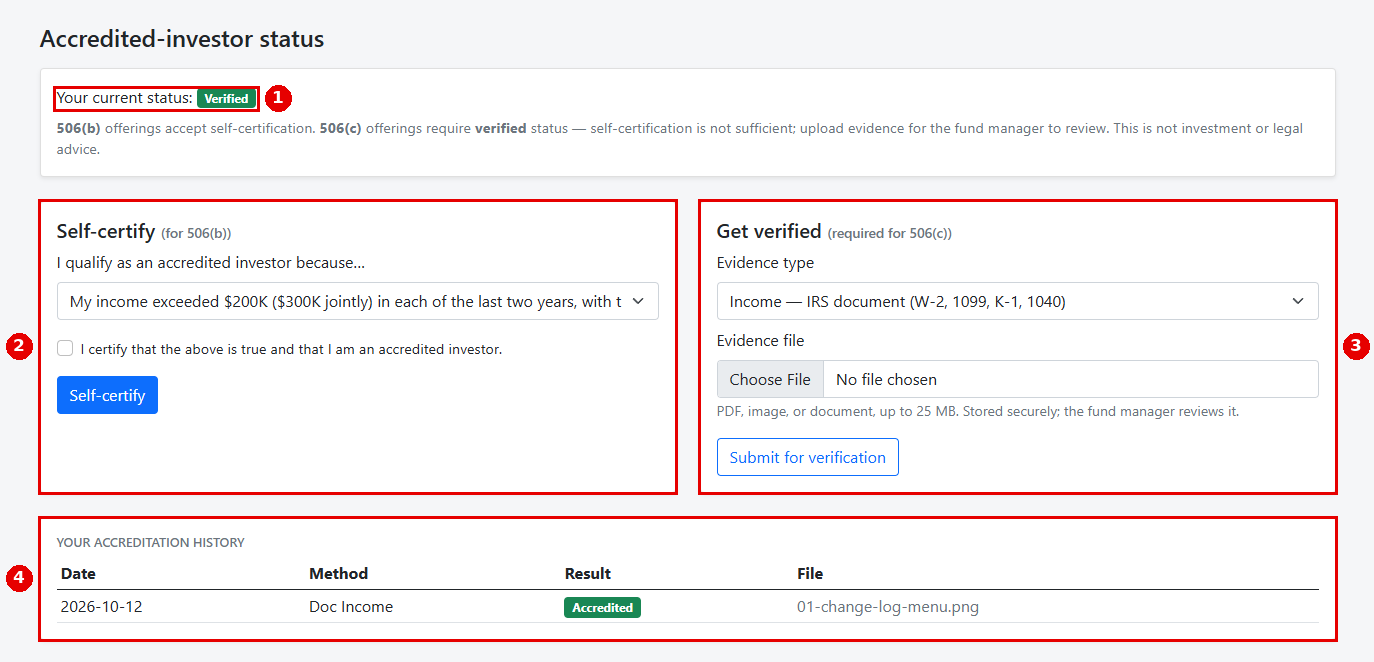
Investors complete accreditation on the portal's Accreditation tab:
- Self-certify: they pick a reason, tick the certification box and click Self-certify. That's enough to invest in a 506(b) offering.
- Get verified (needed for 506(c)): they pick an evidence type, such as an IRS income document, a recent bank or brokerage statement, or a letter from their CPA, attorney, investment adviser or broker-dealer, upload the file (PDF, image or document, up to 25 MB) and click Submit for verification.
Their history table shows each submission and its result.
You review evidence on Fund Management > Command Center, under Operations > Investor Accreditation Review. The list covers your whole company, not just one fund. Open the evidence file, then click Approve and OK to mark the investor verified, or Reject. An investor only needs to be verified once. A 506(c) offering won't let anyone invest until they're verified.
Which documents you accept is your call and your attorney's. LendingWise doesn't give legal advice.
Taking new money through the portal
- A signed-in investor goes to Invest, enters an amount and clicks Subscribe. They see a thank-you message, and the offering shows their pending amount with an Update button and a Withdraw interest link.
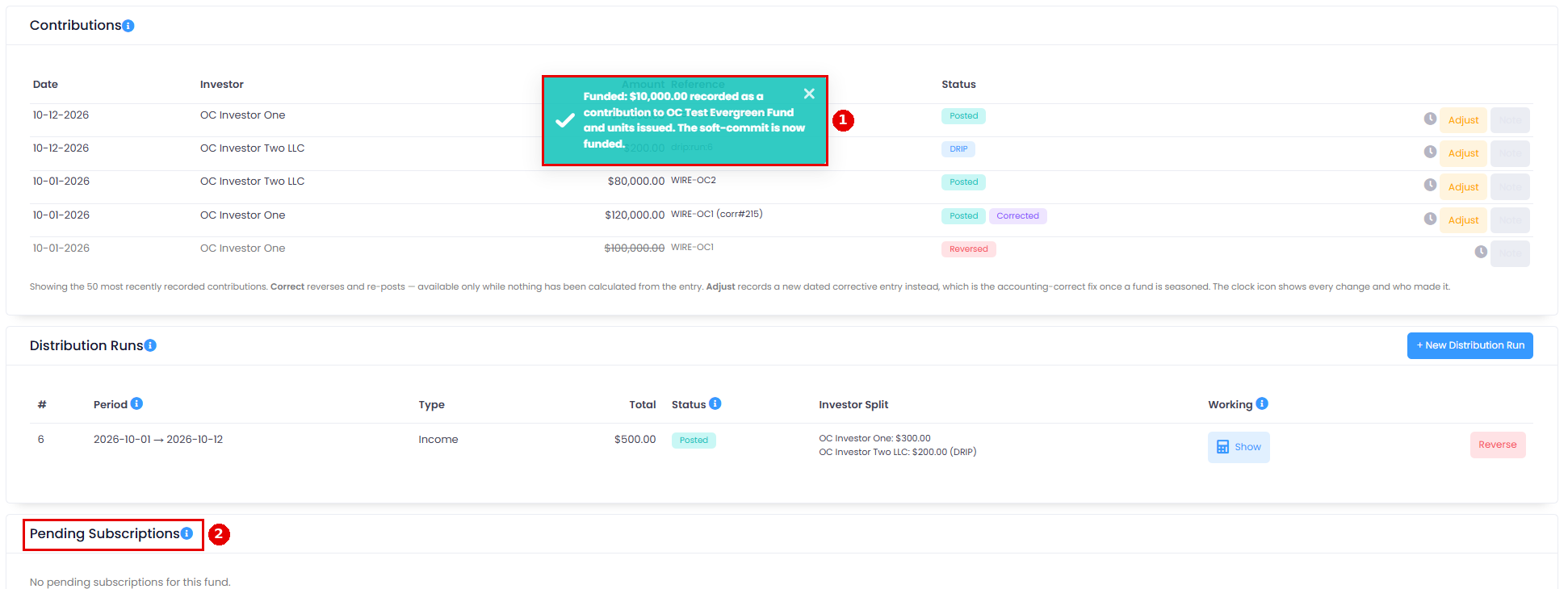
- That's a request, not a payment. On an evergreen fund it waits under Pending Subscriptions on the fund's Operations tab in the Command Center. On a closed-end fund it's recorded as a commitment.
- The investor sends money through your escrow or bank, never through LendingWise.
- Once the money has arrived, click Approve & Fund on the pending subscription and click OK. That records the contribution and, on an evergreen fund, issues units at the current price. Or click Decline.
The system doesn't check the amount against the offering's minimum investment. Check every request against your minimum before you approve it (our recommendation).
Once a subscription is funded, it shows on the investor's Dashboard, and the offering is ready for them to subscribe again.
Approving doesn't change the investor's status in your investors list. If they were a Prospect, edit their record and set them to Active (our recommendation).
Tips
- If you test the portal yourself, open it in a private (incognito) window or a different browser from your LendingWise back office. Signing in to one can sign you out of the other (our recommendation).
- Check that each investor's email is right before you click Grant Portal. The invite goes straight out.