![owl-Logo-1.png]](https://help.lendingwise.com/hs-fs/hubfs/owl-Logo-1.png?width=43&height=46&name=owl-Logo-1.png)
An offering is the public face of a fund: a page where possible investors can learn about it, leave their details or create an account, and (once signed in) see the full detail and ask to invest. Each fund can have one offering. Offerings are part of the Fund Management full plan.
This isn't legal advice. Raising money from investors means selling a security, and you're the issuer. Run your offering, your wording and your documents past your own securities attorney before you publish. LendingWise is software. It doesn't act as your broker or hold your investors' money.
Before you start
- Create the fund first. See Fund Management: getting started.
- Decide how people who sign up get access. On Fund Management > Funds, under Fund Module Settings, Investor Self-Registration sets whether a new account becomes active once the person verifies their email, or waits for you to approve it in the Investors list. Either way, they can't invest until their accreditation is done.
506(b) or 506(c)
Most private raises use one of two Regulation D exemptions. The one you pick changes what the page shows the public:
| 506(b) | 506(c) | |
|---|---|---|
| Public advertising | No | Yes |
| What the public sees | No deal details. At most a generic "join our investor list" page, which you can turn off. | A full public teaser page |
| What signed-in investors see | The offering card under Invest (headline, target return and minimum) and the Subscribe box. No tabs or deal details. | The full page with all nine tabs |
| Accreditation in the portal | Investors can self-certify | Investors must upload evidence and you must verify it |
Your attorney should confirm which exemption fits your raise.
Create an offering
- Go to Fund Management > Offerings and scroll to Create an offering.
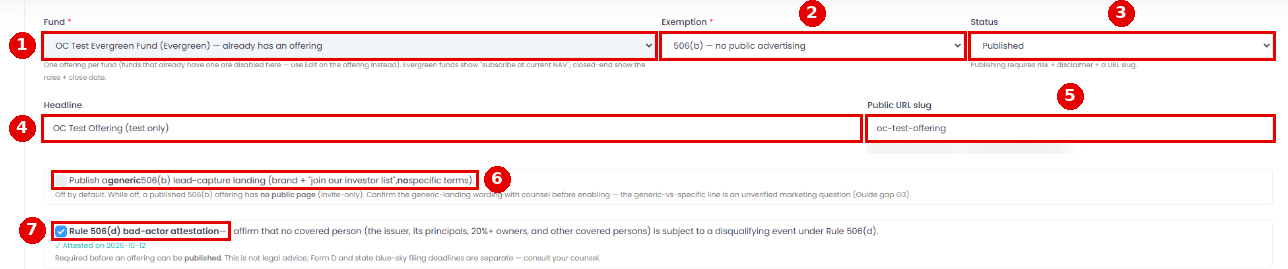
- Pick the Fund. Every field then fills with example text, including the headline, the URL slug, the risk factors and the disclaimer.
- Pick the Exemption: 506(b) or 506(c). Leave Status on Draft while you work.
- Replace the Headline and the Public URL slug (the end of the page's web address; it must be unique).
- For 506(b), decide on the generic "join our investor list" page. Its box starts ticked. Untick it to keep the offering invite-only.
- Fill in the public teaser: Summary, Highlights (one per line, up to 12), Min investment, Target raise, Target return %, Term (months) and Close date (leave it blank for an evergreen fund). On a 506(b) offering, investors only see the headline, target return and minimum, on their Invest card.
- Upload a hero image (JPG, PNG, GIF or WEBP, up to 6 MB). A default image is used if you don't.
- Fill in each section of the Opportunity Overview: Opportunity Details, Financials, Capital Stack, Distributions, Fees and Sponsors, plus Documents / Links.
- Fill in Risk factors and the Disclaimer. Both are needed to publish, and both are always public.
- Click Save offering.
Replace every example before you publish. The system only checks that the risk factors and disclaimer aren't empty. It doesn't notice if they're still the example text, and neither does anything else on the page. Read every section and every tab before you publish (our recommendation).
What's public and what's behind the sign-in
On a 506(c) offering, investors see nine tabs: Opportunity Details, Financials, Risk Factors, Capital Stack, Distributions, Fees, Disclosures, Sponsors and Documents / Links. Risk Factors and Disclosures come from your risk factors and disclaimer. Anyone can see the tab names, but only Opportunity Details and Disclosures show their content publicly. The rest open once an investor signs in or creates an account.
A 506(b) offering never shows these tabs or their content, not even to signed-in investors. That's on purpose, because 506(b) doesn't allow general solicitation. The hint in the editor that says these details appear on the gated detail for 506(b) is out of date. To give 506(b) investors the deal details, share your offering documents through Fund Management > Documents (our recommendation).
The Gated detail box is saved, but it doesn't show to investors on either exemption yet. Put anything important in the tabs (506(c)) or in a shared document instead (our recommendation).
In Documents / Links, give each entry a name and a short description (it shows when someone hovers over it), then link to a file, image, video or page, or upload a file (up to 25 MB). New offerings come with example rows here that link to a placeholder website. Replace or delete every one before you publish (our recommendation).
The public page also has Request information (a short form with name, email, phone and message) and Create account.
Preview and publish
- In Your offerings, click Preview. It works on drafts. For a 506(c) offering it shows the full page with the gated tabs unlocked. For a 506(b) offering it shows the generic "join our investor list" page. A yellow banner reminds you it isn't live. Forms on the Preview page don't save anything, so leads only start counting once the offering is published.
- When you're ready, click Edit, tick the Rule 506(d) bad-actor attestation, set Status to Published and click Save offering. The attestation is your legal statement, so only tick it once you've done your own checks. LendingWise doesn't run background checks.
For a 506(b) offering with the generic page turned off, Your offerings shows the Public URL as "not public (invite-only)". The green save message still shows a page link, but that page won't open for the public. Don't send that link to anyone. Your investors find the offering under Invest once they're signed in to the portal.
If you try to publish without the attestation, you'll see "Failed to save offering: Complete the Rule 506(d) bad-actor attestation before publishing this offering." Changes you hadn't saved yet may be lost when that happens, so save your work as a Draft first (our recommendation).
Later you can set the status to Paused or Closed. Delete removes an offering after you confirm. Any leads it captured are kept.
When investors respond
- The Leads column in Your offerings counts the people who asked for information.
- People who create an account get a portal login, as set in Investor Self-Registration.
- Signed-in investors complete accreditation and can subscribe under Invest. You approve it once their money arrives. The system doesn't check the amount against your Min investment, so check each request yourself (our recommendation). See Fund Management: investor portal.