![owl-Logo-1.png]](https://help.lendingwise.com/hs-fs/hubfs/owl-Logo-1.png?width=43&height=46&name=owl-Logo-1.png)
1. The primary and recommended way to set up your lenders and capital sources is as Internal Loan Programs. See Loan programs: add, edit, internal programs and branch access, or watch Internal loan programs (about 2 minutes).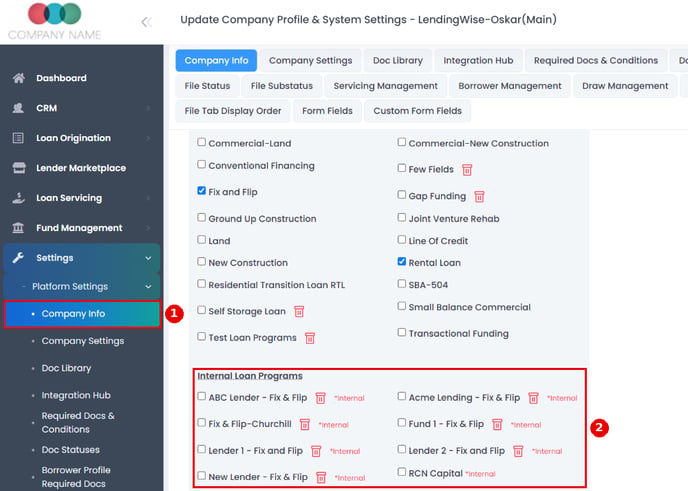
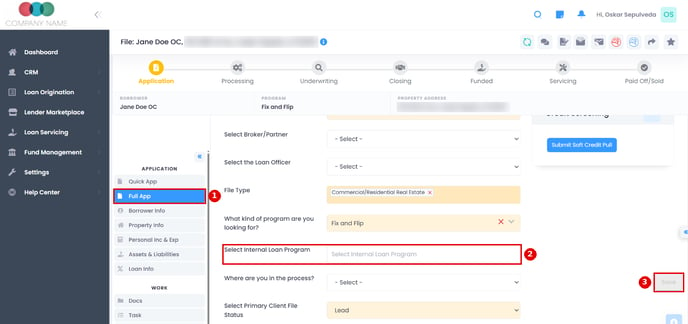
Go to Loan Origination > Pipeline - Main, click your loan file and open its Full App tab. In Admin Info, use the "Select Internal Loan Program" list to assign the Internal Loan Program (Lender/Capital Source), then click Save.
2. An alternate way to indicate a lender on a loan file is to use "Sub-statuses"
You can create your own custom "Sub-statuses" using the name of your lender. Then you can assign the "lender named" Sub-status to a file.
Similar to an Internal Loan Program, you can enable the Sub-status column in your main pipeline view to easily see loan files with their corresponding lenders.
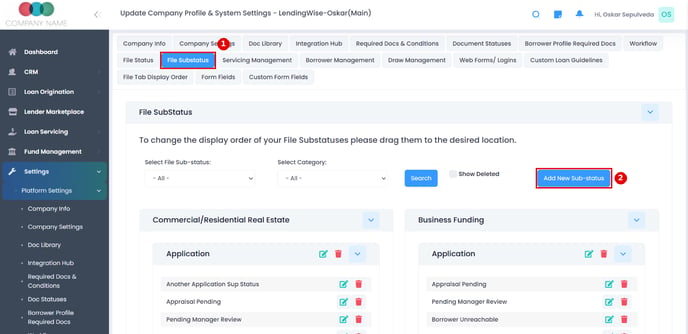
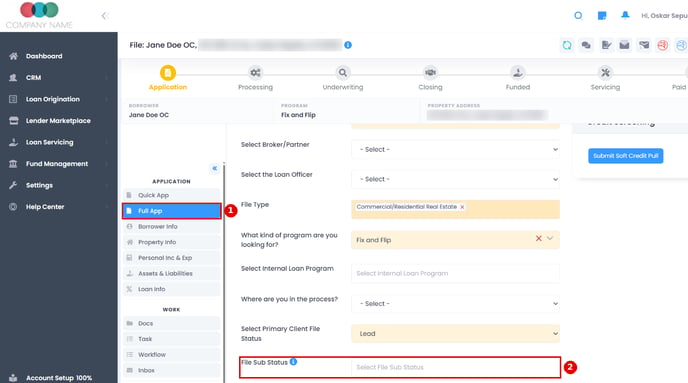
Go to Loan Origination > Pipeline - Main and click your loan file. Pick the Sub-Status (Lender/Capital Source) in Admin Info at the top of Quick App or Full App, or on the Admin tab, then click Save.
3. To send deals to these lenders from inside LendingWise, list each one in the Lender Marketplace: create a Custom Loan Guideline (Settings > Platform Settings > Custom Loan Guidelines) with Enable Marketplace Loan? set to Yes, pick the internal loan program, and add the lender under Select Contacts. It then shows up in the loan file's DEAL ROOM > Market Place search when Loan Program Type is set to All.