![owl-Logo-1.png]](https://help.lendingwise.com/hs-fs/hubfs/owl-Logo-1.png?width=43&height=46&name=owl-Logo-1.png)
Need to update the File Status of several loan files at the same time?
Instead of updating each file individually, you can bulk change loan statuses in just a few clicks.
This saves time and helps keep your pipeline organized and up to date.
✅ When You Might Use This
-
Moving a group of files from "Initial Review" to "Processing"
-
Marking multiple files as "Withdrawn" or "Closed"
-
Advancing pre-approvals to an active loan status
-
Archiving inactive applications
🔧 How to Bulk Update Loan Statuses
⚠️ Permissions Note: You need "Allowed to mass update" turned on in your user profile. Without Manager permissions, Mass Update only offers Deactivate Files.
Step-by-Step Instructions:
-
Navigate to the Loan Pipeline:
-
Go to Loan Origination > Pipeline - Main.
-
-
Use Filters (Optional):
-
Use the status tabs across the top, or Advanced Search (the magnifier icon), to narrow down the files.
-
-
Select Loans:
-
Scroll the grid all the way to the right. In the second-to-last column, tick the box for each file you want to change.
-
Or, tick ALL at the top of that column
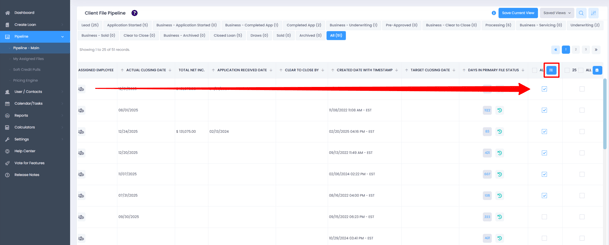
-
-
Click the blue button at the top of that column to open Mass Update, then
Choose “Update Status"
-
A dropdown will appear prompting you to select the new primary file status.
-
-
Select the New Status:
-
Choose the appropriate status from the dropdown menu
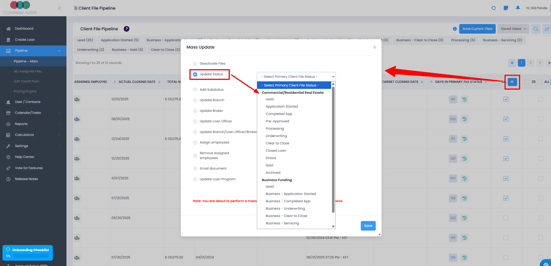
-
- Review your selections and click the “Save” button
🔄 Things to Keep in Mind
-
Bulk actions cannot always be undone. Double-check before confirming.
-
Mass Update runs any automation rules for the new status (emails, tasks, webhooks) right away, with no pop-up and no way to skip them. Make sure the change is intentional, especially on files with real borrower emails.
-
Mass Update ignores Loan Status Hard Stop Rules, so files move into the new status even if its requirements aren't met.
🛠️ Troubleshooting
| Issue | Possible Fix |
|---|---|
| Can’t find Mass Update | Scroll the pipeline grid to the far right, and check "Allowed to mass update" in your profile |
| Some loans didn’t update | Review for missing required fields or status restrictions |
| Status options are missing | You may be limited to specific roles or workflow stages |
📌 Pro Tip
Use the status tabs, Advanced Search or a saved view to quickly isolate the loans you want to update. This keeps your workflow clean and focused.