![owl-Logo-1.png]](https://help.lendingwise.com/hs-fs/hubfs/owl-Logo-1.png?width=43&height=46&name=owl-Logo-1.png)
You can import loan files in bulk from a spreadsheet. Imported files go straight into your pipeline. Go to Loan Origination > Create Loans > Import Loans.
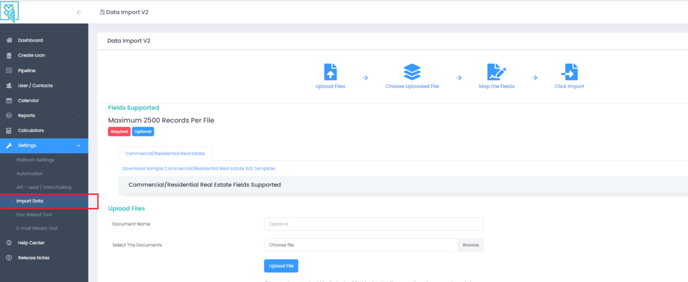
Import loan files
- Download the template "LendingWise Sample Import File.HMLO.xlsx" (70 columns) and fill it in. Make sure you fill in the mandatory fields and any optional ones you need.
- Click Upload File, then the eye icon on your upload.
- Pick the Branch, Broker, Date Format and File Type. Picking a branch resets File Type, so pick the branch first.
- Map your columns to LendingWise fields and click Import.
- When it's done, check Loan Origination > Pipeline - Main to confirm the files are there.
Imports don't send emails or run automations.
Video:
Importing other lists
Import Loans is for loan files only. Other lists have their own import buttons:
- Borrowers (for example old borrower or marketing lists): Import Borrower icon on CRM > Borrowers > Borrower List.
- Contacts: Import Contacts icon on CRM > Contacts > Contact List.
- Loan officers: Import Loan Officers icon (top right) on CRM > Loan Officers > Loan Officer List. Download the template, choose your file (.csv, .xls or .xlsx) and click Upload File. Allow about a minute for the upload.
- Brokers: Import Brokers icon on CRM > Brokers > Broker List.
- Back office users: Import Users on CRM > Back Office Users > Back Office User List.
The Branch List has no import button; create branches one at a time with CRM > Branch > Create Branch.