![owl-Logo-1.png]](https://help.lendingwise.com/hs-fs/hubfs/owl-Logo-1.png?width=43&height=46&name=owl-Logo-1.png)
Tasks are the to-dos that move a loan forward. You can create them by hand or have automation rules create them, and you can see them on a calendar, in a list or on each loan file.
Watch: create a task on a loan file, mark it complete and find your tasks on the Dashboard. The video starts at the task part; go back to the start for workflow steps.
Go to CRM > Calendar/Tasks. It has three items: Calendar, Task List and Create Task (Create Task opens a window).
Calendar
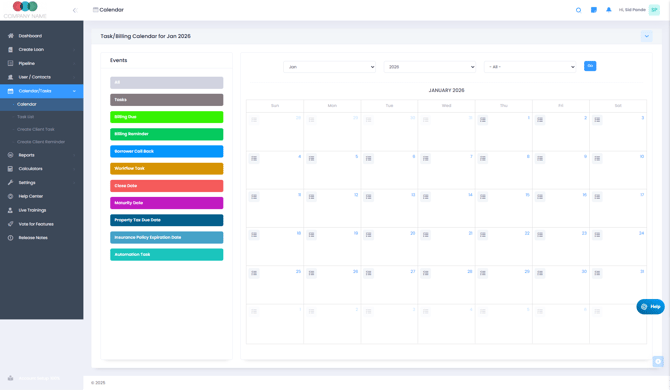
- Shows tasks and events by day, week or month.
- Color-coded by status or user.
- Jump to upcoming due dates or appointments.
Task List
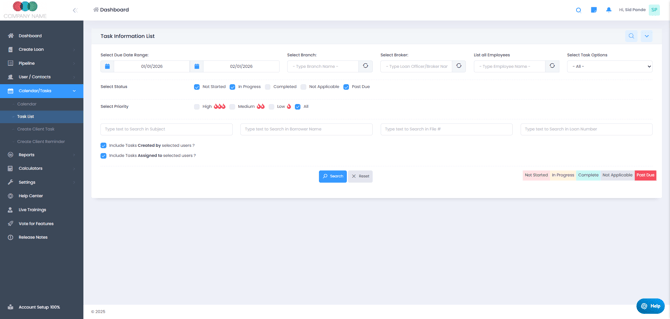
- A list of all tasks that you can filter and sort.
- Search by task name, assignee, due date, loan file or status.
- Update the status of several tasks at once.
Creating a task
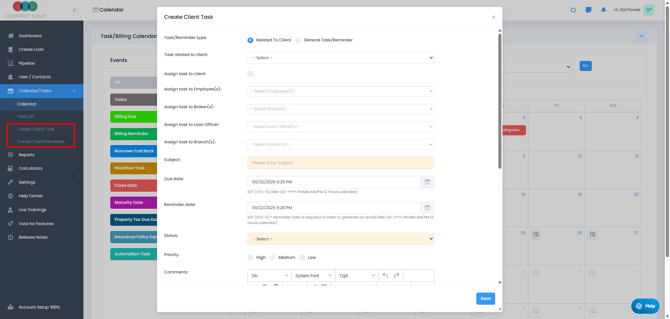
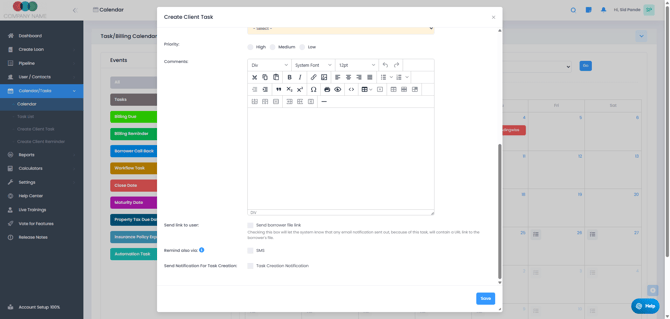
You can create a task in three ways:
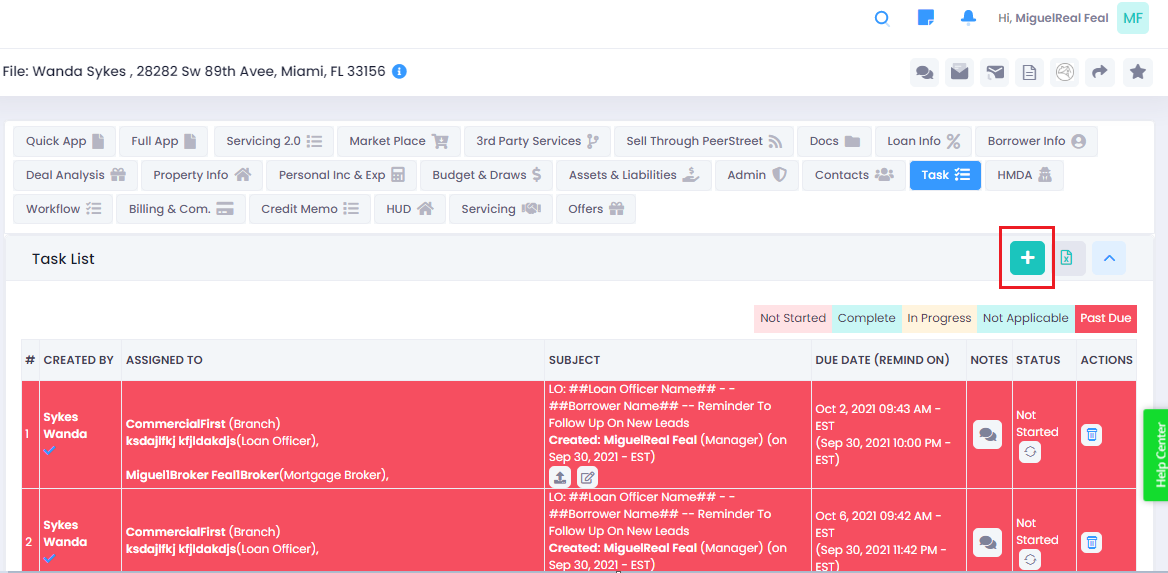
- On the loan file: in the menu on the left, under WORK, click Task, then click +.
 Fill in the subject, comments, due date, reminder date and the other fields.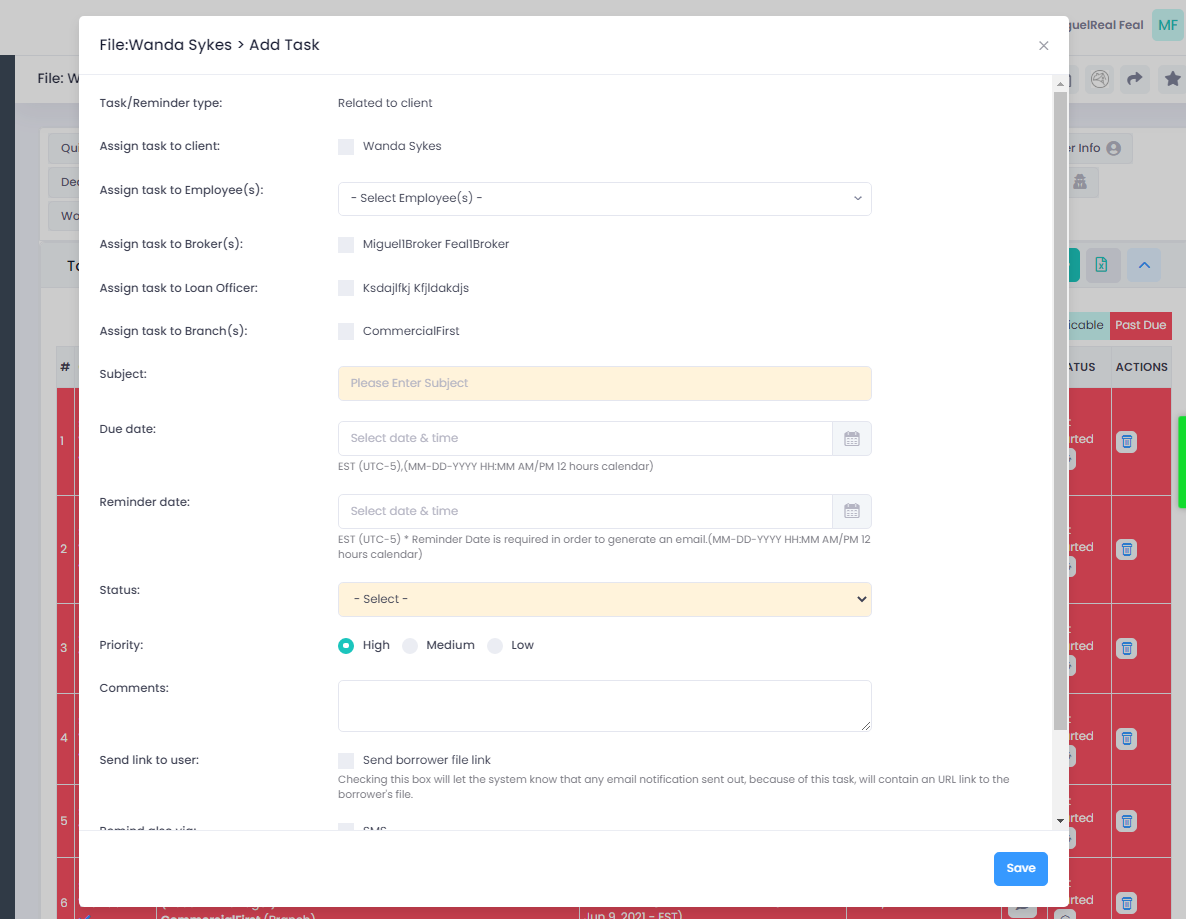
- From anywhere: CRM > Calendar/Tasks > Create Task.
- Automatically: with an automation rule (see below).
For each task you can set who it's assigned to (users or roles, for example a loan officer or processor), the due date and time, priority, notes or a description, and the loan file it belongs to.
Task statuses
You can set a task to Not Started, In Progress, Completed or Not Applicable. A task that's past its due date shows in red as Past Due. Statuses help you track progress and who's responsible for what.
Tasks from automation and workflows
Workflow steps don't have task settings of their own. To create a task automatically, for example "Order appraisal" when a file reaches a certain stage:
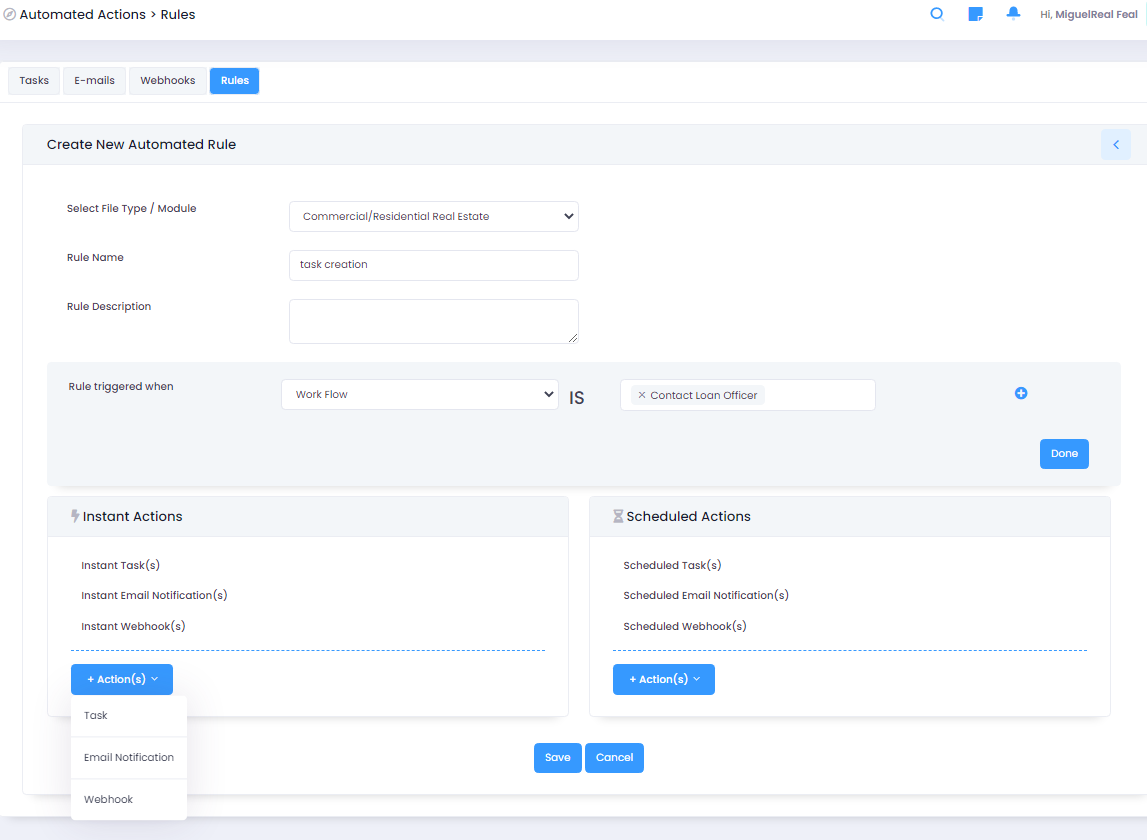
- Create the task in Settings > Automation > Actions (Create Task).
- Create a rule in Settings > Automation > Rules and attach the task. The trigger can be a status change, a workflow step and more.
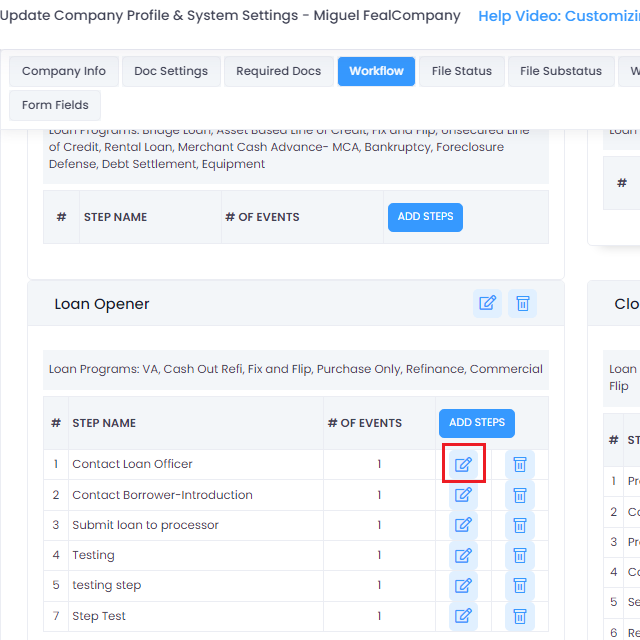
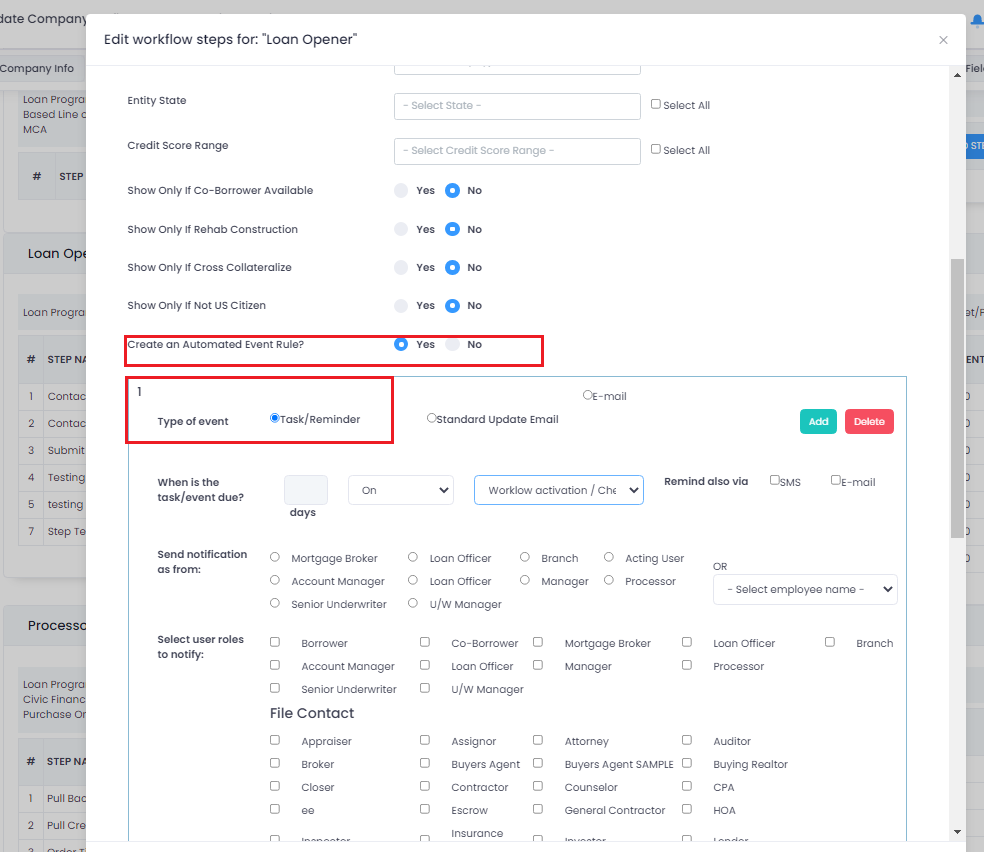
The same rules can also send emails or webhooks. We suggest reading the automation articles to get familiar with the tool.
Reminders
Tasks can send reminders by email or SMS so people stay on schedule. For automation tasks, SMS needs a Cell Number in Company Info and email needs a Reminder Date.
The Task tab on a loan file
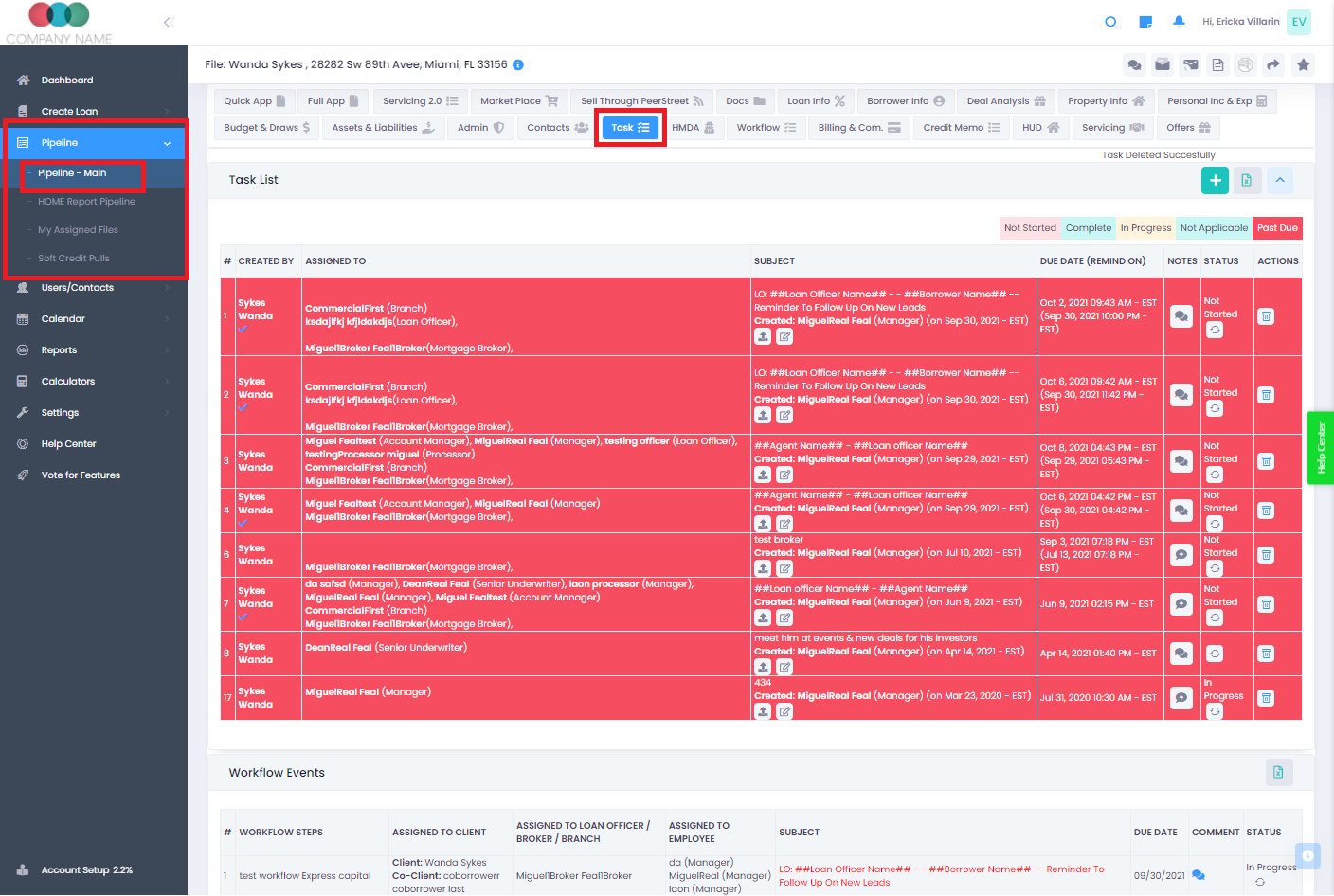
Open the loan file and, in the menu on the left under WORK, click Task. You'll see every task for that file. Tasks created by automation rules show in a separate Automation Tasks box under the Task List. Click + to add a task.
To change a task's status, click the status icon under its status in the Task List, pick a status in the Update Task Status window, and click Save. Completed tasks turn teal.
Your tasks also show on the Dashboard under Task & Reminder, which lists active tasks from the last 30 days across your loans. Turn on Show My Tasks to see only the ones assigned to you.