![owl-Logo-1.png]](https://help.lendingwise.com/hs-fs/hubfs/owl-Logo-1.png?width=43&height=46&name=owl-Logo-1.png)
Notes keep a running record of what's happening on a loan file. Each note has a type, and it's either Private (your team only) or Public (can be shared with the borrower and other parties).
Watch: add a note and send it by email or text in about 2 minutes.
Add a note
- Open the loan file and click the Add Notes icon in the file header.
- Pick a Notes Type: General, Billing Department, Client, Draw Related, Lender Notes, Required Doc Notes, Servicing Notes or Workflow Notes.
- Type your note and choose who can see it. Check Private or Public before you save, because the starting choice isn't the same on every file.
- If you like, notify people by Email, or by Email & SMS (SMS only goes to the borrower).
Here's how it looks:


See recent notes
Hover the notes icon on a file's row on the Dashboard (or the speech-bubble icon on the Pipeline) to see the file's latest 25 notes. A switch in the pop-up shows or hides system-generated notes, so you can see all notes or just the ones people wrote.

If Show System Generated Notes is off in Settings > Platform Settings > Company Settings, system notes (and that switch) are hidden for everyone. They aren't deleted.
Edit or delete a note
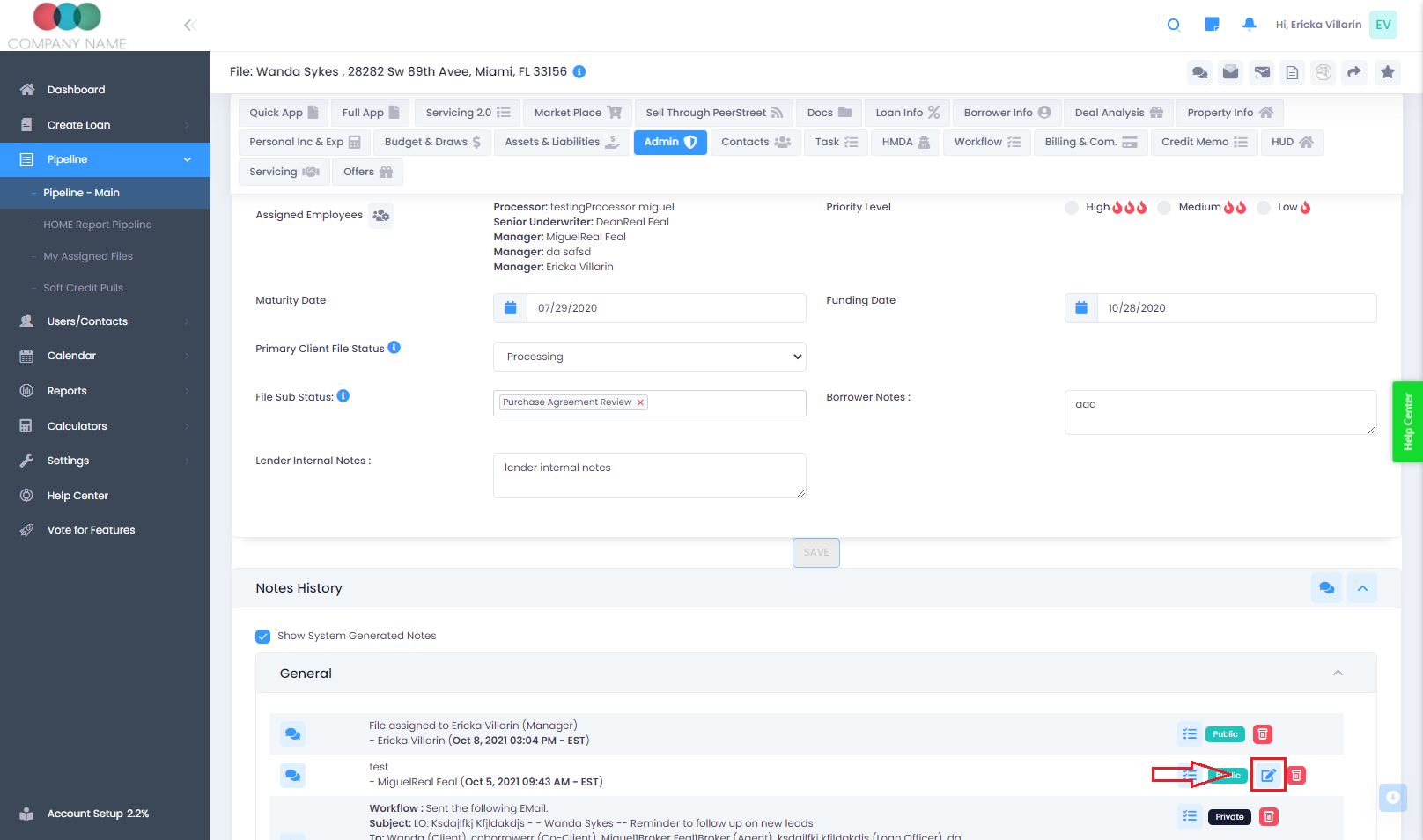
- Open the loan file and click Admin in the menu on the left (under ADMIN; the page heading is File Info).
- Scroll to Notes History.
- Click the blue pencil ("Click to edit [name] notes") to edit a note, or the trash icon to delete it. Edited notes are marked "(edited)". The pencil only shows on notes people wrote, not on system notes.
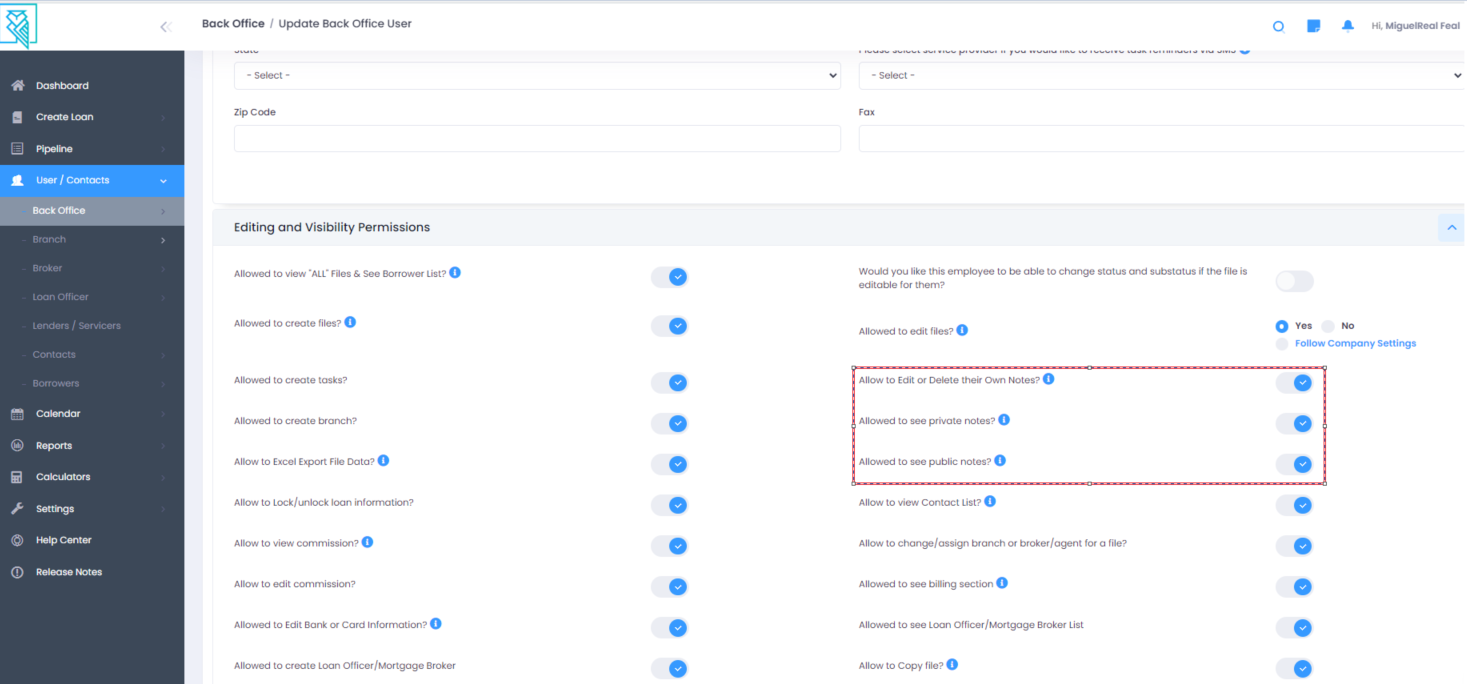
Managers can delete all notes. Other users can edit or delete their own notes only when "Allow to Edit or Delete their Own Notes?" is on in their profile (CRM > Back Office Users > Back Office User List > user).

If you don't see the Admin tab, a Manager can turn it on in Settings > Platform Settings > File Tab Display Order.
Who can see and add private notes
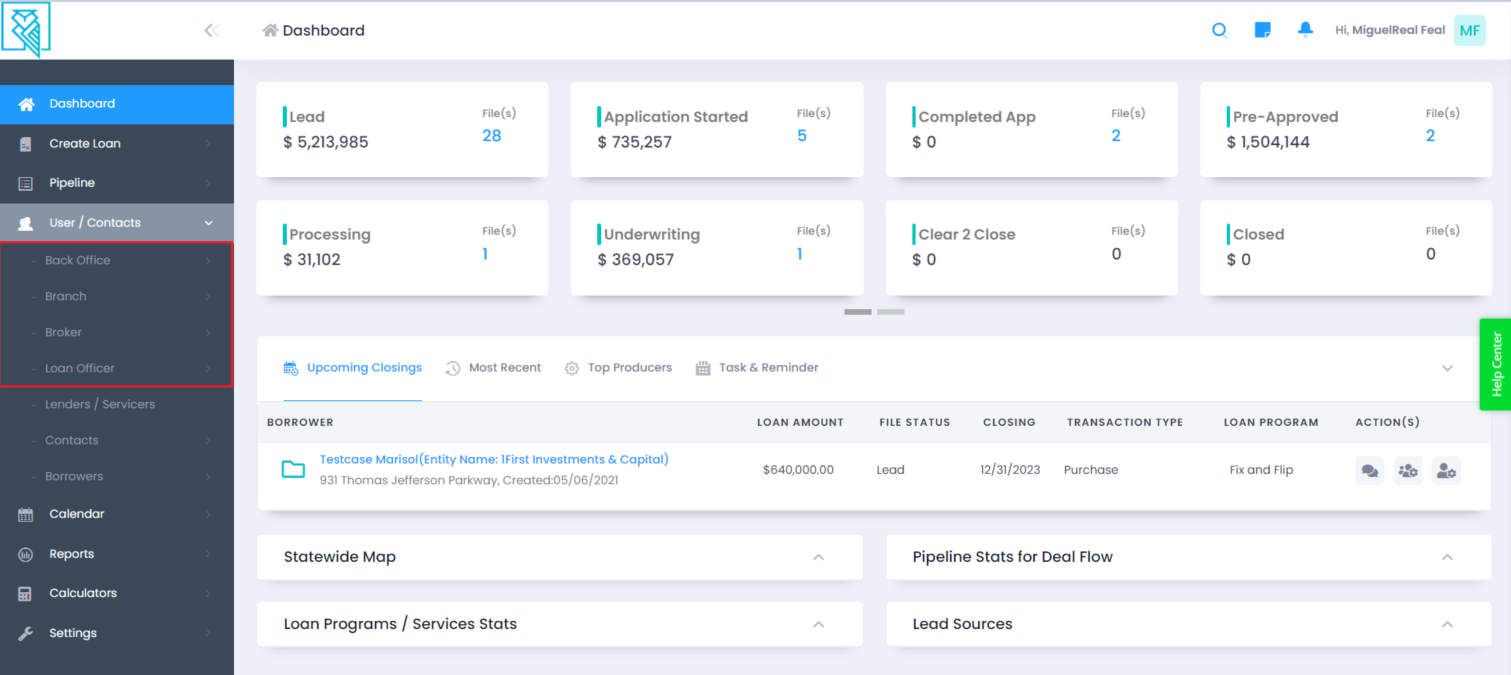
Some notes should stay between a few people at your company. Each Back Office, Branch, Loan Officer and Broker profile has permissions for seeing, adding and editing private notes (for example "Allowed to see private notes?" and "Allowed to see public notes?"). To change them, go to CRM > Back Office Users, CRM > Branch, CRM > Loan Officers or CRM > Brokers, click the person's name and set each question to Yes or No.
Employee profile settings:
Tip: notes you add start as Private. To show a note to, or send it to, the borrower, broker or loan officer, switch it to Public. In Settings > Platform Settings > Company Settings (Notes & Visibility card), "Default system generated notes as" sets whether system-generated notes start as Public or Private.
Summary report of notes
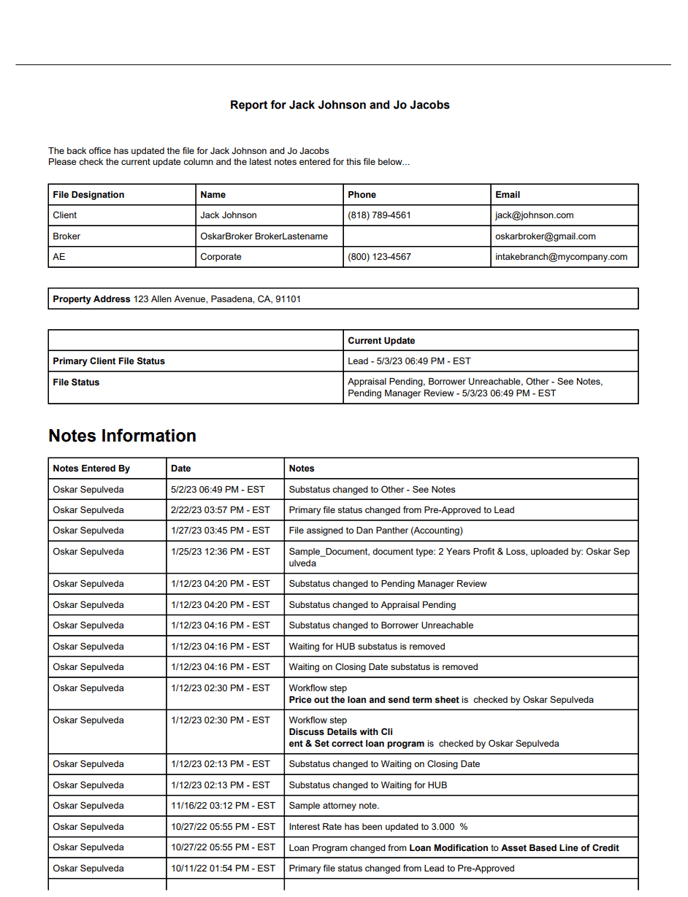
The Summary Report is a PDF of a file's notes and history. It lists the borrower, co-borrower, broker, branch, property address, current primary file status and sub-statuses with timestamps, then the notes and task information. Notes include the ones people write and the ones the system adds automatically (such as General, Workflow and Required Docs notes).
To create it:
- Go to Loan Origination > Pipeline - Main.
- Click the green folder on the file's row.
- Under More Actions, click "Click to create Summary Report For Public and Private Notes", or "Click to create Summary Report For Public Notes" for public notes only.
Sample report: