![owl-Logo-1.png]](https://help.lendingwise.com/hs-fs/hubfs/owl-Logo-1.png?width=43&height=46&name=owl-Logo-1.png)
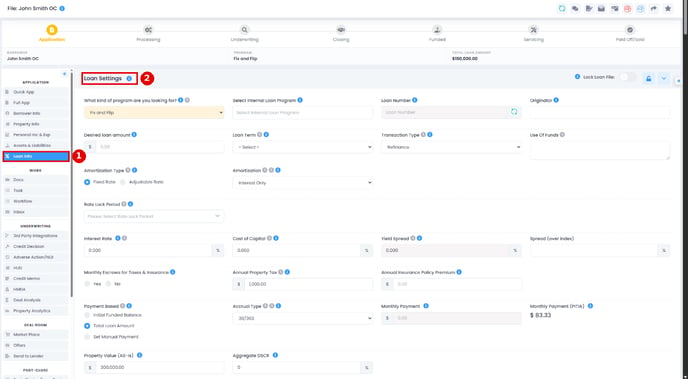
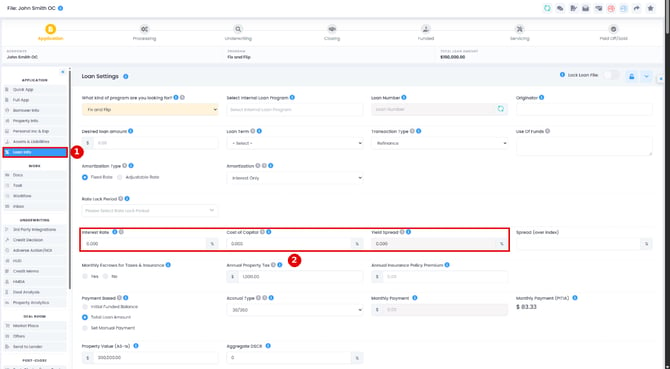
The Loan Info tab holds the loan's terms, fees, ratios and other details. The term sheet is built from this data. Open the loan file and, in the menu on the left under APPLICATION, click Loan Info. The page heading reads Loan Settings.
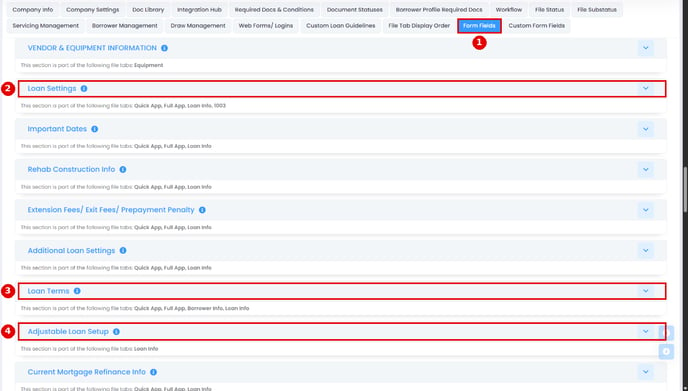
To choose which fields show and how they calculate, go to Settings > Platform Settings > Form Fields. The main sections are:
- Loan Settings
- Loan Terms
- Adjustable Loan Setup
- Fees & Costs
Good to know:
- Lock Loan File (shown to users with the lock permission) makes Loan Info read-only for other users after you save.
- Guideline Warnings from Custom Loan Guidelines show here when a loan goes past its program's limits.
- Since the October 2, 2026 release, "Calculate Base Loan Amount as" includes "Lesser of Purchase Price or As-Is Value", and Monthly Payment (PITI) can be turned on in Form Fields.
How the loan is sized
Two questions in the Loan Terms section drive most of the numbers on this tab. Hover the blue info icon next to any field or ratio to see what it means, how it's calculated and the figures from this loan.
Calculate Base Loan Amount as picks the figure the Base Loan Amount is sized from:
- Purchase Price LTV % (it used to read "Acquisition Purchase Price LTV %"). On a refinance it reads Original Purchase Price LTV %.
- Property Value (As-Is) LTV %
- Lesser of Purchase Price or As-Is Value
- Sum Total of Payoffs (refinance files): the Base Loan Amount is the total of the payoffs on the file, such as existing mortgages and taxes owed.
- Down Payment % or Down Payment $ (purchase files)
- Manual Entry: you type the Base Loan Amount yourself.
Calculate Total Loan Amount as decides how the Total Loan Amount is reached. On Default, the total is built up: the Base Loan Amount plus financed rehab plus any financed reserves, fees and costs. Pick ARV, LTC or Manual and the total is set first, then the Base Loan Amount is worked out backwards from it.
ARV and LTC only show when the property needs rehab. They're offered only when "Will the property need rehab or construction?" is Yes. If you switch that answer to No, Calculate Total Loan Amount as goes back to Default, and the rehab parts of the page (ARV, Rehab/Construction Cost, Project Cost and Simple ARV) are hidden.
Key Ratios
Key Ratios calculate on their own. Which ones you see depends on the loan program, the transaction type, whether there's rehab, and your settings in Form Fields (Loan Terms section, Key Ratios rows). Hover each ratio's info icon for its formula and this loan's numbers. The main ones:
- Acquisition LTV: (Base Loan Amount + Financed Closing Costs) / Purchase Price x 100
- Market LTV: Initial Funded Balance / Property Value (As-Is) x 100. Financed rehab isn't counted, because it's paid out later through draws. Since the October 20, 2026 release, Market LTV is worked out this way on every transaction type, so refinances and delayed purchases may show a different number than before.
- Simple ARV: (Total Loan Amount - Origination - Broker Points - Financed Prepaid Interest Reserve) / ARV x 100
- Full ARV: Total Loan Amount / ARV x 100
- LTC - Total Loan Amount: Total Loan Amount / Total Project Cost x 100
- LTC - Market Value: Base Loan Amount / (Property Value (As-Is) + Cost Spent) x 100
You may also see LTC w/Soft & Hard Cost, LTC - Initial Loan Amount and, on refinances, LTC - Original Purchase Price.
Origination and broker points
Broker Points and Origination Points are in the Fees & Costs section of Loan Info. Since the October 2, 2026 release, both take up to 12 decimal places. Lock the field if you want to be sure the fees won't change. Check whether "Include Closing Cost Financed" should be ticked, because the fees change depending on it. This video shows how it works:
The Adjustable Loan Setup section (back office only)
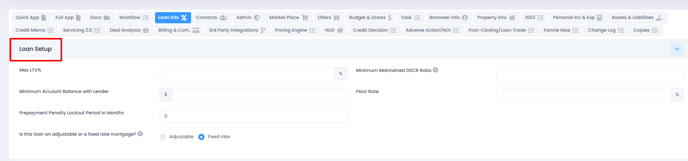
This section used to be called "Loan Setup". It holds fields such as Max LTV%, Minimum Maintained DSCR Ratio, Minimum Account Balance with Lender, Floor Rate, Prepayment Penalty Lockout Period in Months, and whether the loan is adjustable or fixed rate. In Form Fields it's part of the Loan Info tab only.
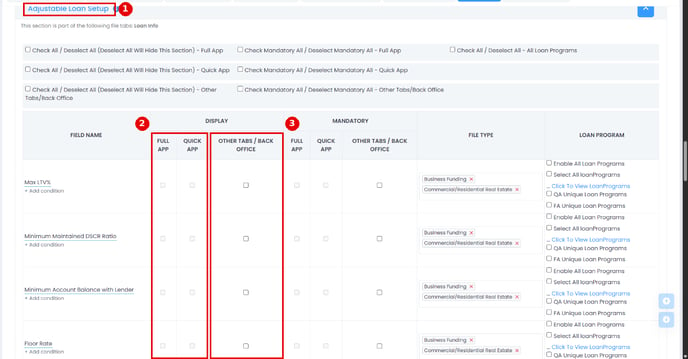
Note: fields in this section don't appear on the Quick App or Full App. Their FULL APP and QUICK APP boxes are greyed out; only OTHER TABS / BACK OFFICE can be ticked. The same goes for custom fields you add to this section.
Interest Rate, Cost of Capital or Yield Spread greyed out?
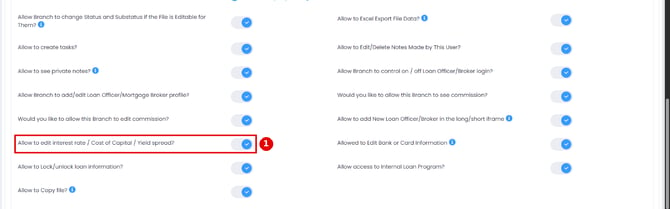
If you can't change Interest Rate, Cost of Capital or Yield Spread, a Manager needs to give you access.
The permission is on branch, loan officer and broker profiles (CRM > Branch, CRM > Loan Officers or CRM > Brokers, then click the name): "Allow to edit interest rate / Cost of Capital / Yield spread?". On broker profiles it reads "Allow to View/Edit interest rate / Cost of Capital / Yield spread?". Turn it on to let the user see and edit those fields. Back office users don't have this switch.
These fields can also be greyed out when Lock Loan File is on and the user doesn't have the lock permission.
DSCR
DSCR isn't one of the Key Ratios. Loan Info shows Aggregate DSCR in the Loan Settings section, and on programs that use it, a Subject Property Cash Flow (Annualized) section with Debt Service Ratio and Debt Service Ratio - PITIA. That section doesn't show for every loan program, so if you can't find it, check the loan program on the file and the section's settings in Settings > Platform Settings > Form Fields.