![owl-Logo-1.png]](https://help.lendingwise.com/hs-fs/hubfs/owl-Logo-1.png?width=43&height=46&name=owl-Logo-1.png)
You can email straight from a loan file, with a template or without, and attach the file's documents. You can also send a note with an email notification.
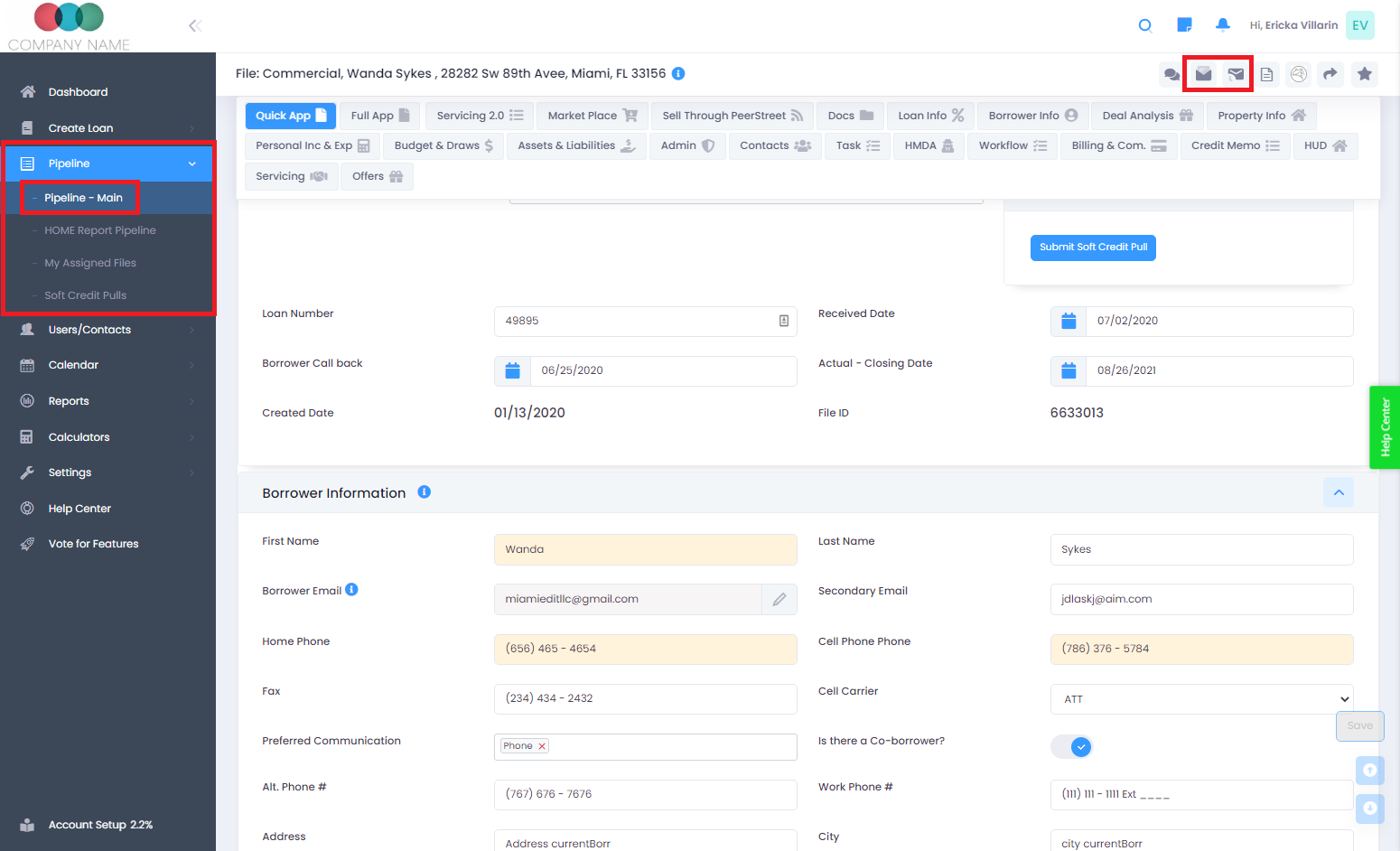
Where to send from
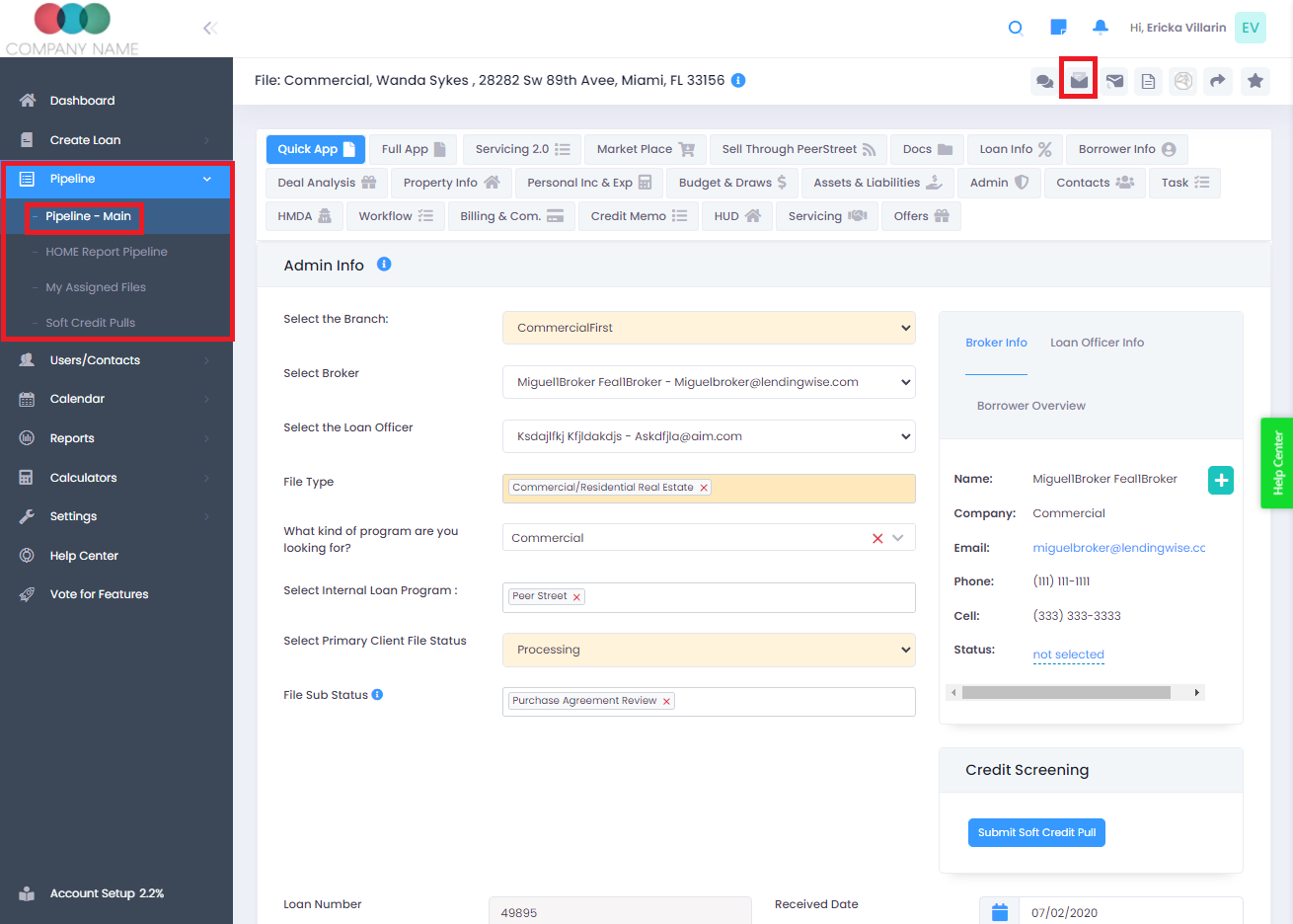
- The Compose Email icon in the loan file header.
- The Compose Email icon in the Pipeline: click the green folder on a file's row, then look under More Actions.
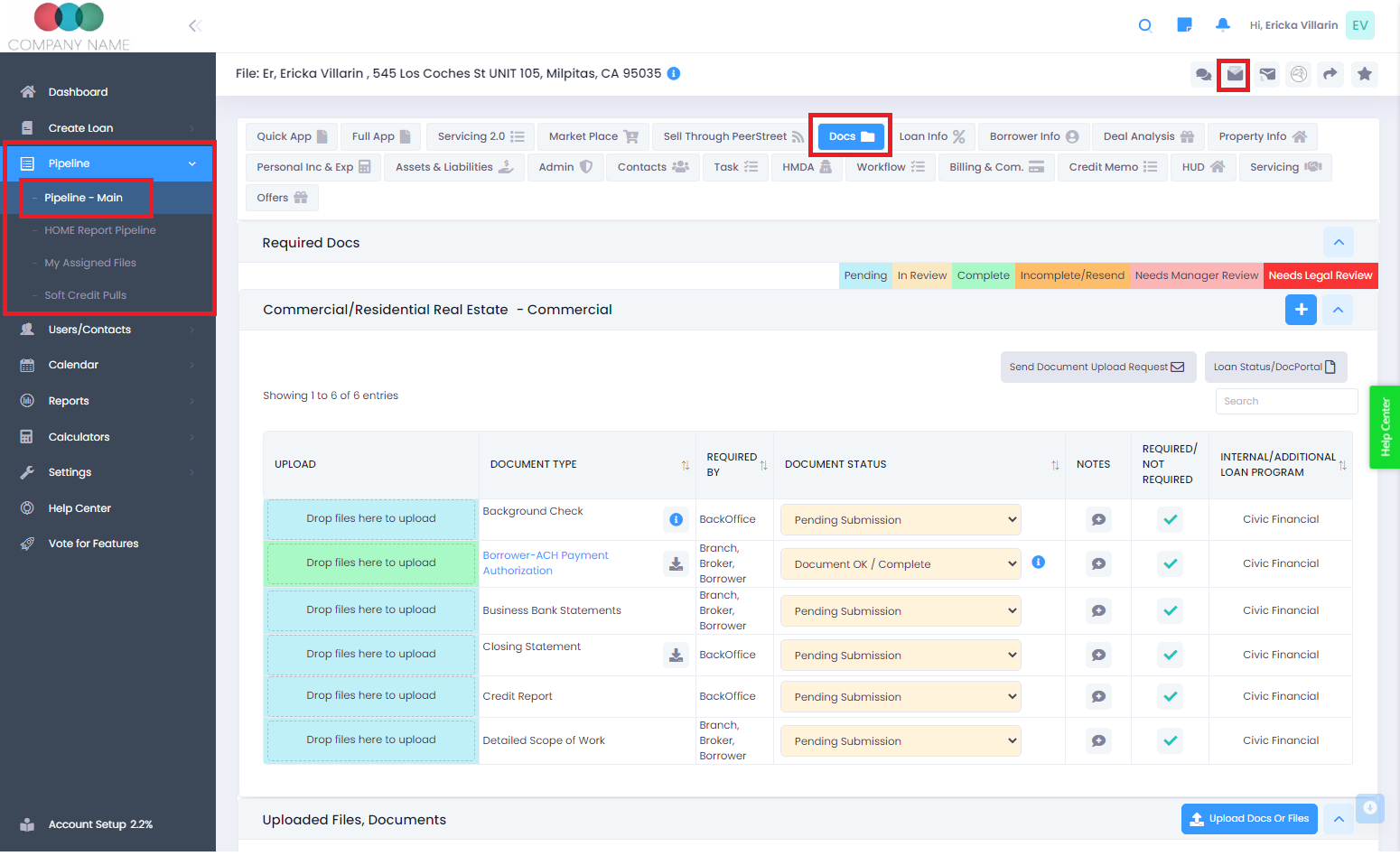
- The Docs tab inside a loan file.
Send an email
Click the Compose Email icon to open the window. Then:
- Message: write it yourself, or pick one of your saved templates or a LendingWise standard template. Picking a template fills in the file's data right away, so check the message before you send.
- To: starts empty, even after you pick a template. Pick from the BORROWER, BRANCH and EMPLOYEE groups, or use Add Custom Email. There's also a BCC button.
- From: starts on you. You can switch it to the branch or an assigned employee.
- Cc: the file's Inbox address is added automatically.
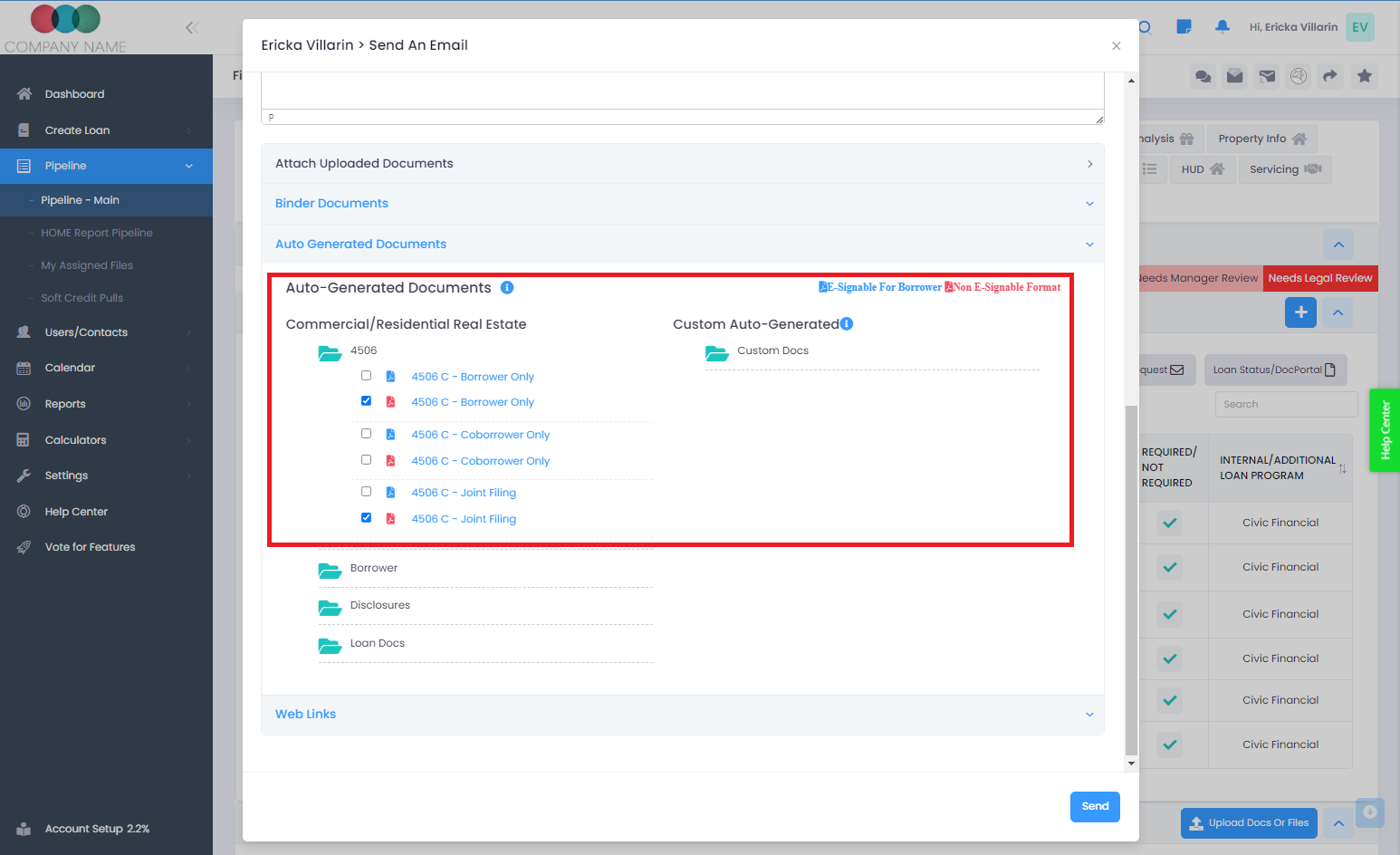
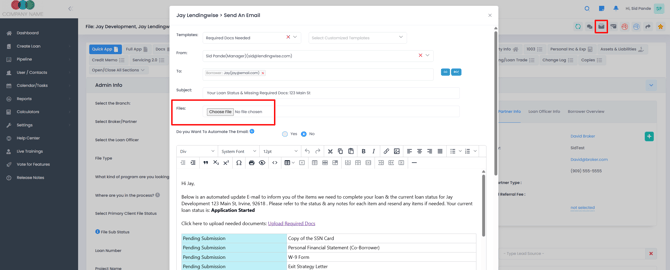
- Attachments: pick uploaded documents or auto-generated documents, or click "Choose File" to attach something from your computer.
- Send now or schedule it. Sends wait as Pending for about 2 minutes. Scheduled emails show under Pending Scheduled Emails (the Scheduled Emails/Email History icon in the file header).

Emailing documents and attachments
Open the loan file, click Compose Email and pick your documents in the Files section. You can send documents uploaded to the file or from the auto-generated documents.
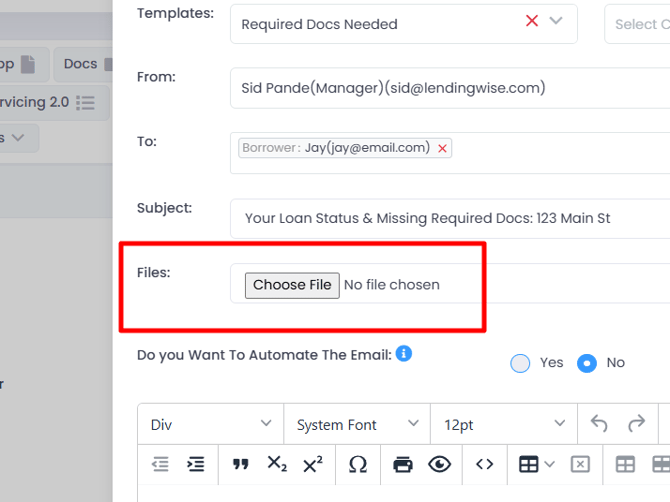
- You can attach up to 50 files per email.
- Files under roughly 10 to 12 MB arrive as normal attachments.
- If an attached file is bigger than that, the email arrives without it. The email shows a link instead, and the recipient clicks the link to download the file.
Ask someone to upload documents
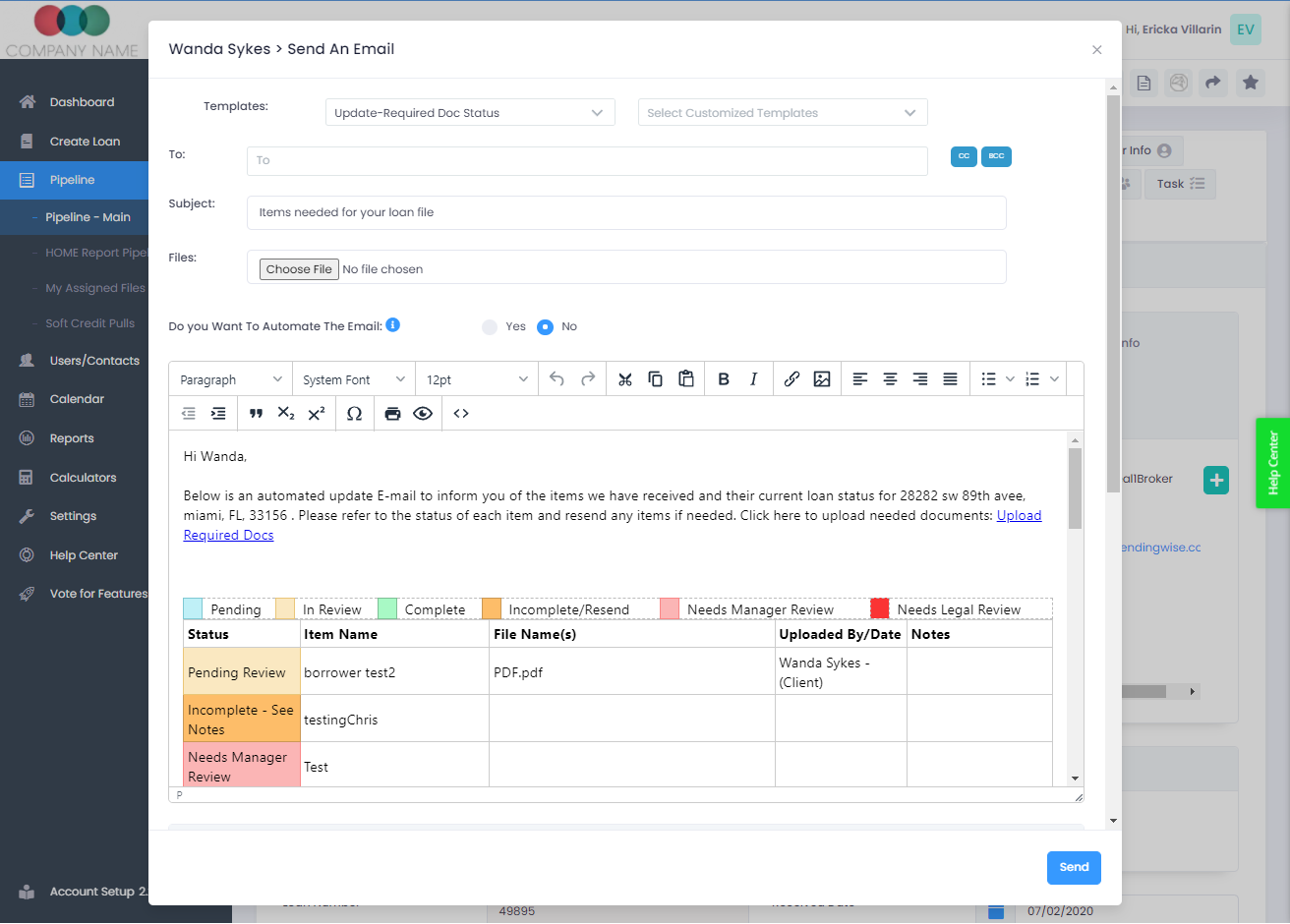
Open the loan file and click Compose Email. Pick a template that includes the ##Required Doc Status## merge tag, such as the standard "Update-Required Doc Status" template. The tag adds a table of the file's required docs and their status. Borrowers upload through the borrower portal, which only shows the docs required of the borrower.
Send a note with an email notification
When you add a note to a loan file, you can also send an email notification. Choose to send either the new note only or the full note history. Notes can also go out as an SMS text to the borrower's mobile number.
Email templates
To create or edit templates, go to Settings > E-mail Wizard Tool. See the Email Wizard Tool article for full steps.
Questions? Email helpdesk@lendingwise.com.