![owl-Logo-1.png]](https://help.lendingwise.com/hs-fs/hubfs/owl-Logo-1.png?width=43&height=46&name=owl-Logo-1.png)
You can add your signature to the emails LendingWise sends, and you can put a link to your Quick App or Full App webform in your email signature, whether you use LendingWise, Outlook or Gmail.
Add your signature to LendingWise emails
- Go to Settings > Platform Settings > Company Settings and find the Communication Settings card.
- Turn on "Automatically include a user signature on outgoing emails?" (turn it off to leave the signature out).
- Click Save at the bottom of the page.
The signature includes the name, cell #, fax # and email from the user's profile, and the company name from Company Info.
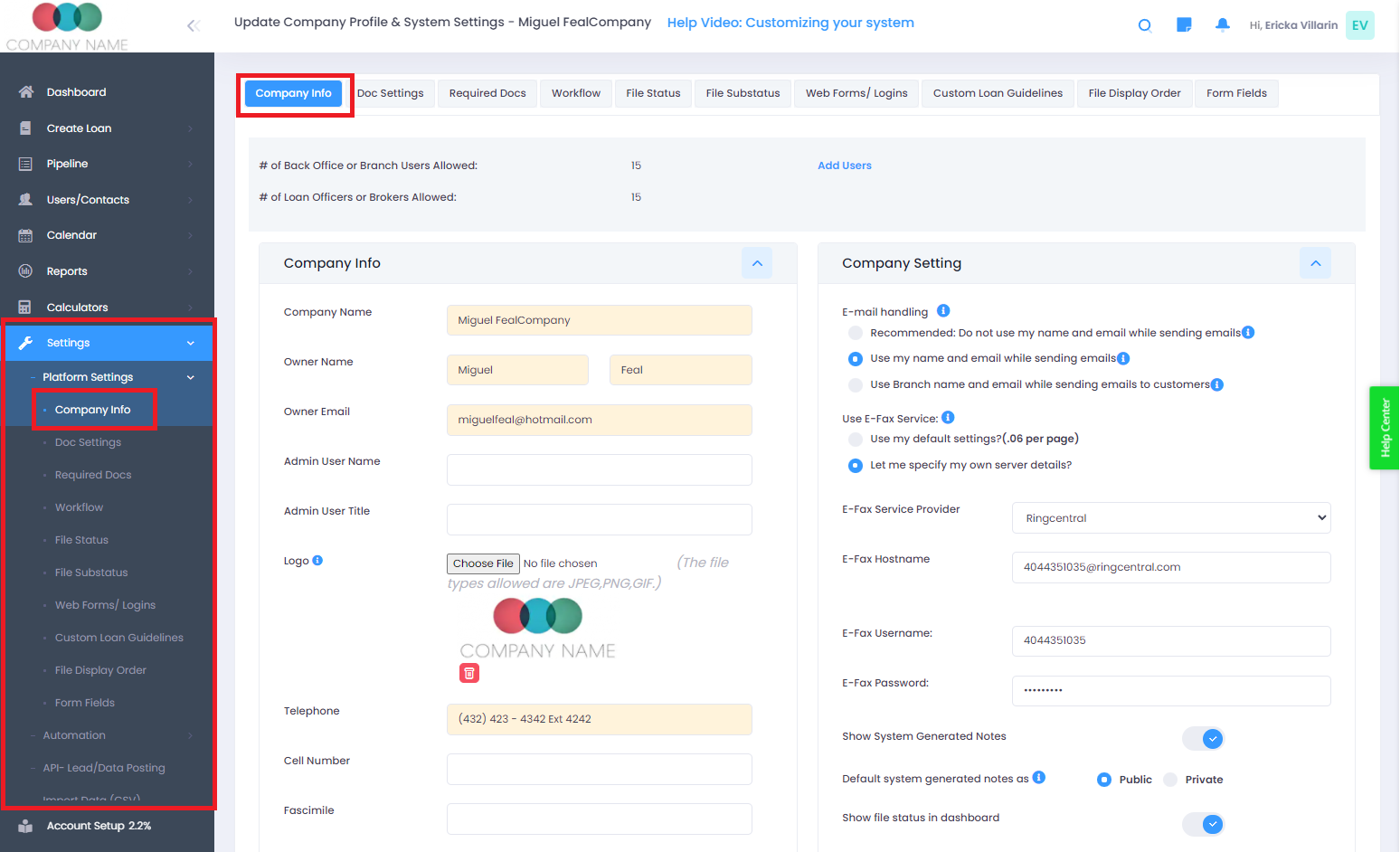
Step 1: Copy your webform link
- Go to CRM > Branch > Branch List and click the branch.
- Open the Web Form Integration tab.
- Click Copy link on the Quick App or Full App card. This copies the one-page link. For the multi-step version, click Add to website, choose Link to it and Multi-Step, then copy the link.
Loan officers and brokers have their own Web Form Integration tab on their profile, with links that credit files to them. The direct link works as-is in an email signature; you don't need the embed code.
In a LendingWise email template
Instead of showing the whole URL, you can link text like "Apply Now" or "Complete Your Application".
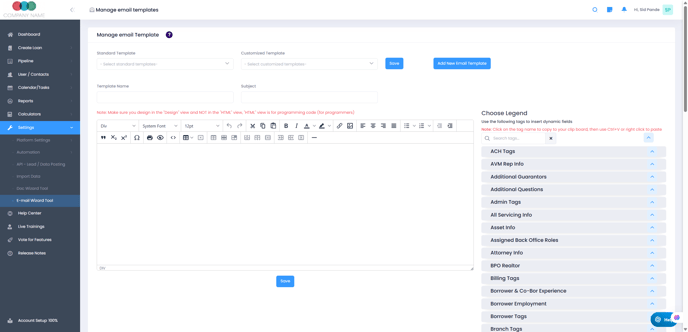
- Go to Settings > Email Wizard Tool. Select an existing template or click Add New Email Template.
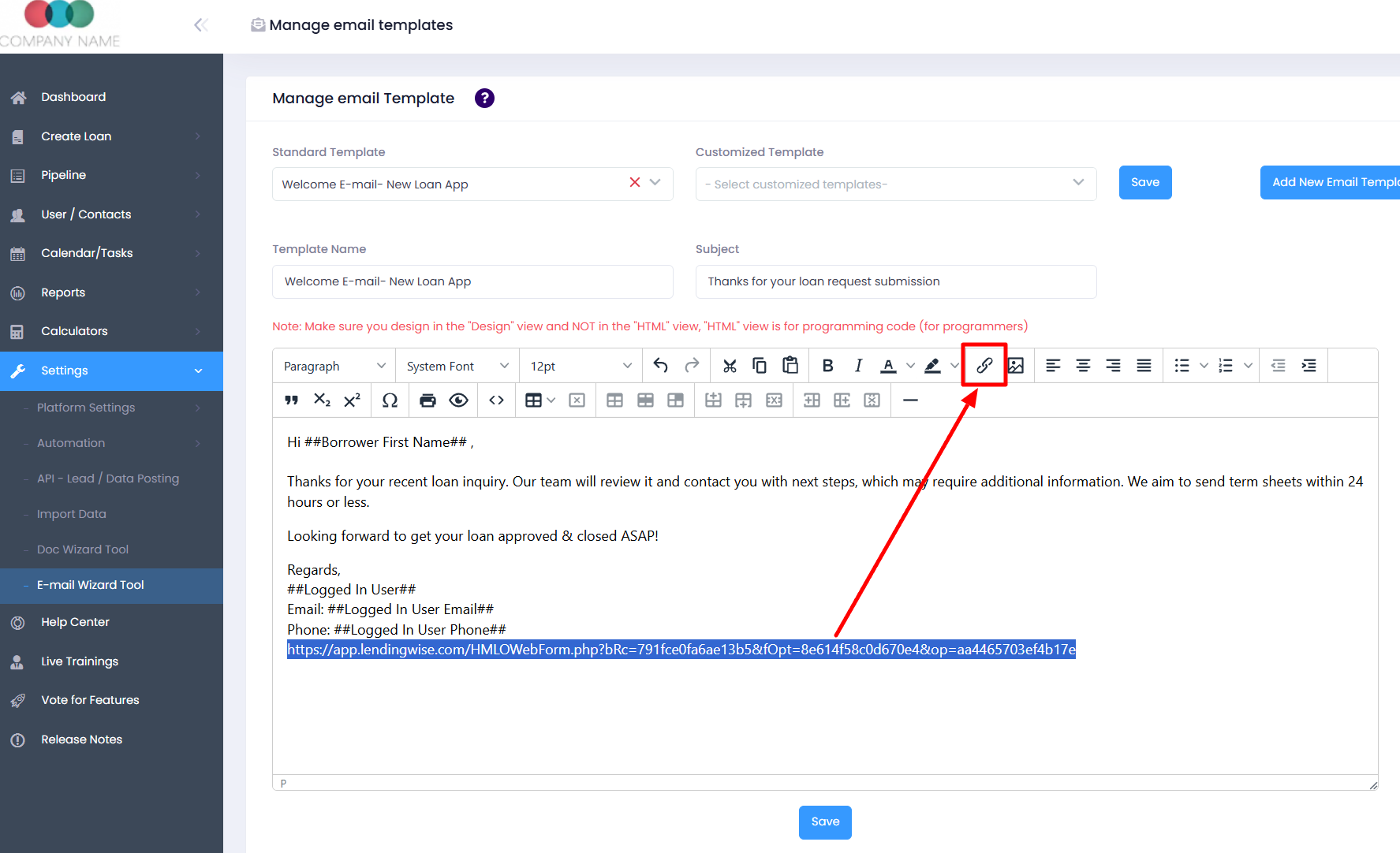
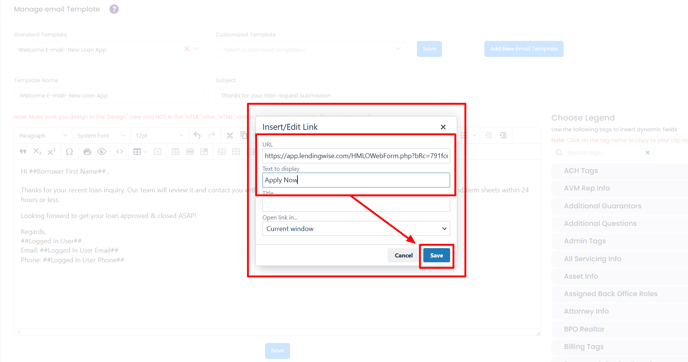
- Put your cursor where you want the link and click the insert hyperlink (link) icon.
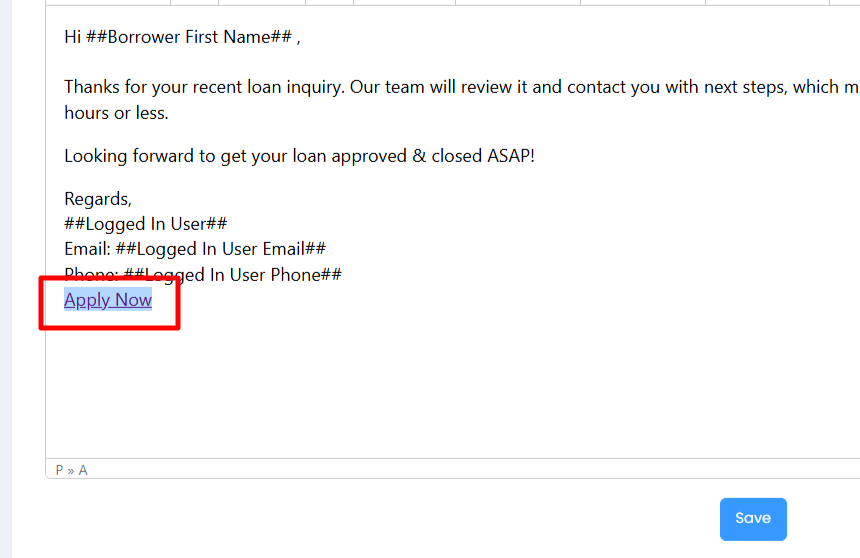
- Type the link text, such as "Apply Now", and paste the webform link you copied.
- Confirm to insert the link.
- To personalize the email, add merge tags such as
##Borrower First Name##or##Borrower Last Name##. For a full list of available merge tags, refer to the Email Wizard Tool documentation. - Click Save, then send a test to check that the link shows and opens the right webform.
Link not working? Check the following: (1) the link was copied from the branch's Web Form Integration tab, not from a broker or loan officer profile; (2) the template was saved before sending; and (3) the webform is active and publicly accessible.
In Outlook
- Open the signature editor.
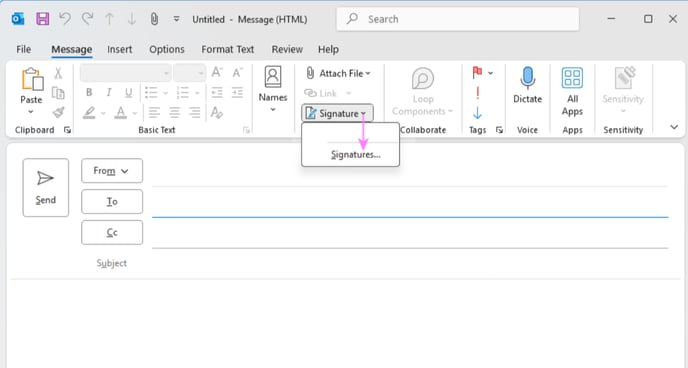
- Outlook desktop (Windows): click File > Options > Mail > Signatures, or open a new email and go to Message > Signature > Signatures.
- Outlook web (Outlook.com / Office 365): click the Settings gear (top right), then View all Outlook settings > Mail > Compose and reply.
- Pick a signature to edit, or click New and give it a name like "LendingWise Application Link".
- In the Edit signature box, put your cursor where the link should go. Highlight or type the text (for example "Apply Now" or "Complete Quick App").
- Click the Insert Hyperlink (chain) icon, paste your webform link in the Address box and click OK. You can also link an image, such as your logo: insert it, select it, then click the hyperlink icon.
- Click Save, then OK. If you like, set it as the default for new messages or replies and forwards.
- Send yourself a test email and check that the link shows and opens the right webform.
Tip: If the link does not appear as a clickable hyperlink in Gmail, check that your Gmail signature editor is in rich-text mode (not plain-text mode) by clicking Formatting options at the bottom of the signature editor.
In Gmail
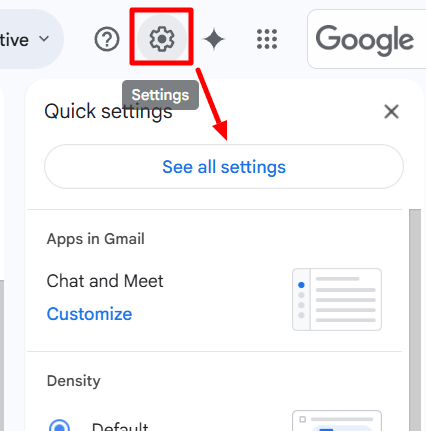
- Click the Settings gear at the top right of Gmail, then "See all settings".
- Open the "General" tab.
.png?width=433&height=307&name=download%20(2).png)
- Scroll to the "Signature" section and click the insert link icon.
.png?width=688&height=188&name=download%20(1).png)
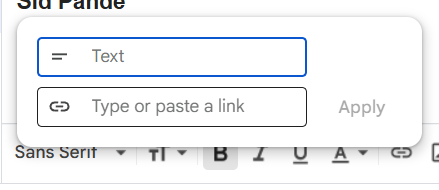
- Type the text to show, like "Apply Now", and paste your Quick App or Full App link in the second box.
- Scroll down and click "Save Changes".