![owl-Logo-1.png]](https://help.lendingwise.com/hs-fs/hubfs/owl-Logo-1.png?width=43&height=46&name=owl-Logo-1.png)
Work through these checks when an automation rule didn't send an email, create a task or assign a user.
Start with the Activity Log
Go to Settings > Automation > Activity Log. It lists every automation that tried to run on your files, with a Status and a Response:
- Completed with "Email Sent Successfully", "Task Created Successfully" or "Employee Assigned Successfully" means it worked.
- Failed with "This automated Email was already sent on..." or "...Task was already created on..." means the rule already ran once on this file. See "The rule only runs once per file" below.
- Cancelled with "Cancelled by user[name]" means the automation was skipped when the file was saved. Either someone clicked Cancel on the automations pop-up, or the email had no one to go to (see "The email went to nobody" below).
- Nothing in the log means the rule never matched. Check the rule itself (next section).
You can filter the log by Actions (Task, Email Notifications, Webhooks, Assign Employee), Status and date, and search by File Id, borrower name or email, property address or loan number.
Check the rule
Go to Settings > Automation > Rules.
- Is it on? The Status column shows ON or OFF.
- Is the File Type / Module right? A rule only applies to the file type you picked.
- Do the triggers match what happened? The Rule For column shows the trigger. For example, a rule set to Primary File Status "Approved" won't run when someone changes the sub-status. For new files, use Loan File = Create.
- Does it have actions attached? A rule can be on with 0 actions. Check the "# of action(s)" column.
The change has to be saved
Automations run when you save, not when you pick a value, and only when the value actually changes. After you change a status, loan officer or other trigger, click Save. If an automation matches, a pop-up opens within a few seconds: "These Automated Action(s) will be triggered based on..." Click SAVE ACTION(S) & RUN AUTOMATION RULE(S) to run what's ticked. Clicking Cancel still saves your change but skips every automation.
Saving the file again without changing the trigger won't run the rule again.
The rule only runs once per file
Allow rule to repeat? is off by default, so a rule runs once per file. If a file goes back to the same status later, the pop-up can still show, but nothing is sent and the log shows "Failed". Turn on Allow rule to repeat? if you want it to run every time.
The email went to nobody
Emails sent to a role (like Borrower, Broker or Loan Officer) or a file contact (like Appraiser) need someone in that role on the file. If no one is there, the automations pop-up shows a red message: "You have some missing information that is needed to complete the below actions." The recipient shows in red with [Missing], for example "Loan Officer [Missing]", and that email can't be ticked. It won't be sent, and the Activity Log shows it as Cancelled.
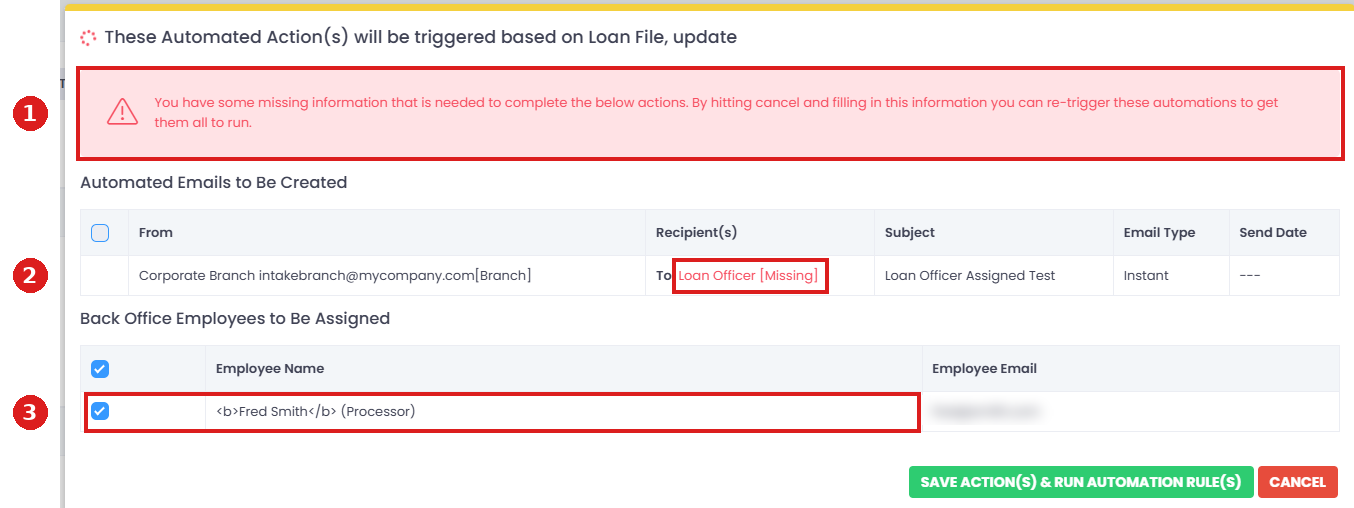
To fix it, click Cancel, add the missing person to the file (and check their profile has an email address), then change the trigger again and save.
Watch out for rules that assign and email the same person. In our testing, a rule triggered by assigning a loan officer, with an email to the Loan Officer role, showed the loan officer as [Missing] on that same save. The pop-up checks recipients before the new loan officer is saved. Saving again doesn't re-run the rule, because the loan officer didn't change. Our recommendation: send "you've been assigned" emails from a later trigger, such as a status change, or pick the person under Select specific Back Office User(s) in the email action.
The email was sent but not received
Automation emails are sent from the LendingWise mailer address, using the sender name you picked in the email action (for example, your branch). If they're landing in spam or junk, see E-mails going to spam, junk or updates folder. Check CRM > E-mail Reports (Bounced Emails and Unsubscribed) too.
Leads aren't being assigned
To assign a back office user automatically, add the Assign Back Office User(s) action to a rule. The trigger can be anything that happens when a lead comes in or gets routed, for example Loan File = Create, the status new leads start in, or the loan officer, broker or branch on the file. When it runs, the pop-up lists the user under "Back Office Employees to Be Assigned", and the Activity Log shows "Employee Assigned Successfully". The user then shows under Assigned Employees on the file's Admin tab.
If leads aren't being assigned:
- make sure the trigger matches how your leads come in (a rule on one loan officer won't run for files assigned to someone else)
- check that the users you picked are still active
- check the Activity Log for the file
Still stuck?
Send us the loan file URL link, the rule name and roughly when it should have run, and we'll take a look.