![owl-Logo-1.png]](https://help.lendingwise.com/hs-fs/hubfs/owl-Logo-1.png?width=43&height=46&name=owl-Logo-1.png)
Personalizing your LendingWise interface with your company and branch logos not only fosters a sense of brand identity, but it can also provide your borrowers a more personal experience. Here is how you can easily upload these logos that will show both on your system and in certain auto-generated documents.
Company Logo Uploading:
-
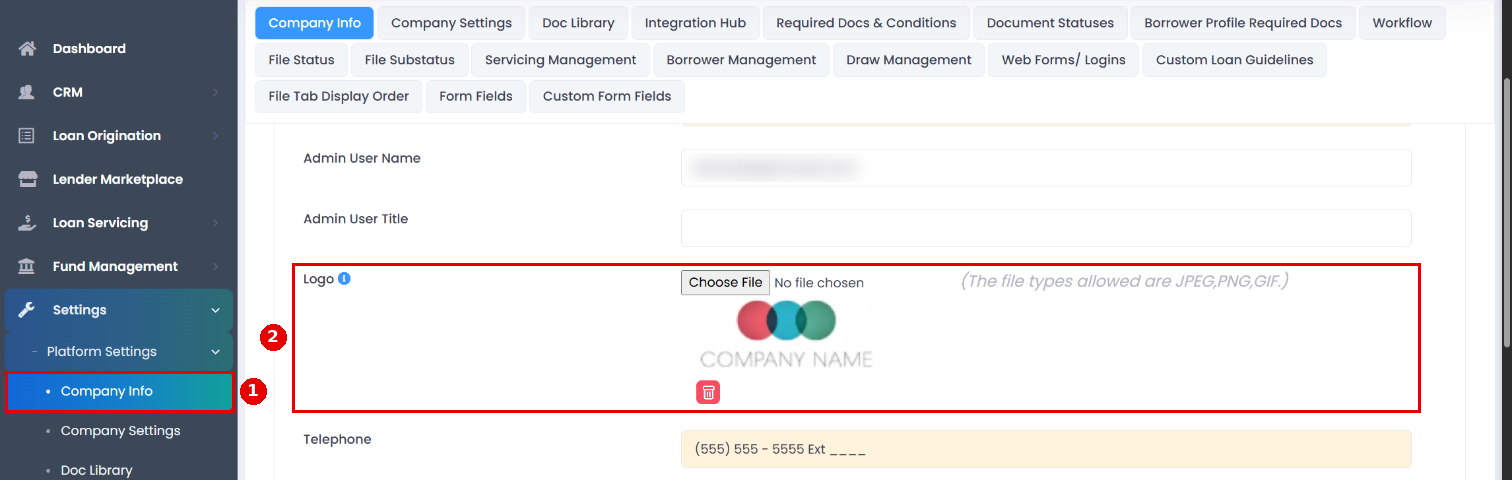
Navigate to Company Info: First, head to Settings > Platform Settings > Company Info (the main section starts closed; click it to open)
-
Upload Logo: Within 'Company Info', look for the 'Logo' section. Here you can upload the image file of your company logo.
-
Save Changes: After the logo has been successfully uploaded, scroll down to the bottom of the page and click on the 'Save' icon.
Please ensure the size of the image for the logo is 250px wide by 150px tall for optimal display.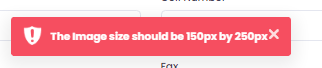
Branch Logo Uploading:
-
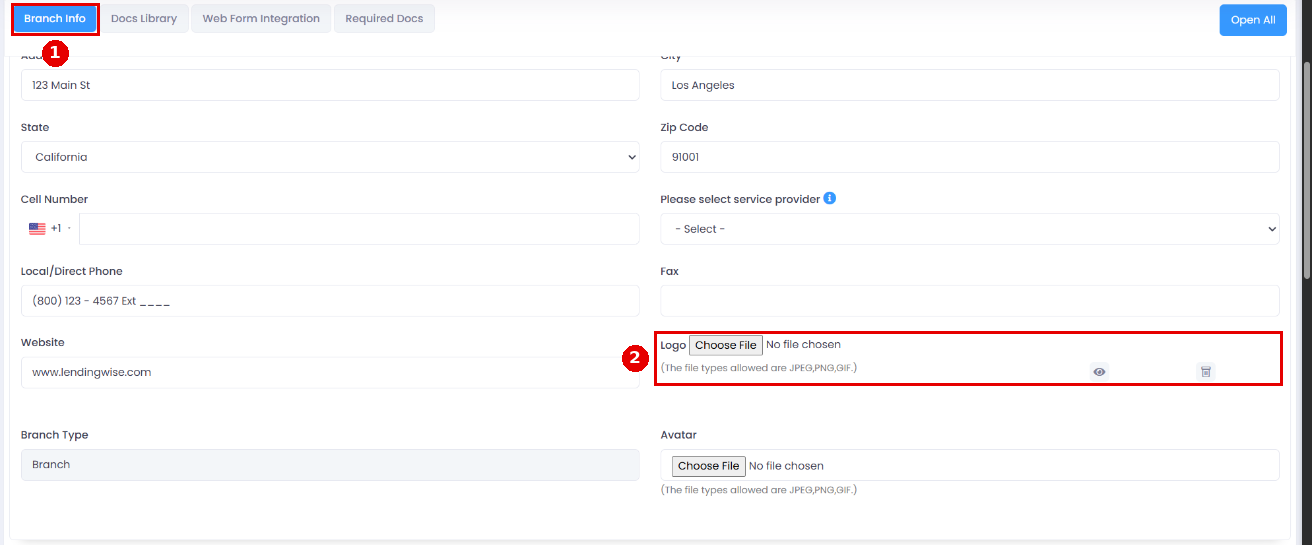
Navigate to Branch Info: Go to CRM > Branch > Branch List and click the branch.
-
Upload Logo: In the 'Branch Info' section, you'll find the 'Logo' subsection where you can upload the branch's logo.
-
Save Changes: Once the logo is uploaded successfully, do not forget to click on the 'Save' icon at the bottom of the page.
By following these steps, you can add your branding to LendingWise. Should you run into any issues or queries, don't hesitate to contact LendingWise support at helpdesk@lendingwise.com.