![owl-Logo-1.png]](https://help.lendingwise.com/hs-fs/hubfs/owl-Logo-1.png?width=43&height=46&name=owl-Logo-1.png)
The Change Log shows the history of a loan file's fields: what each value was before, what it changed to, when, and who made the change. Use it when a number on the file looks wrong and you need to know how it got there.
Open the Change Log
Open the loan file. In the menu on the left side of the loan file, under TOOLS, click Change Log. You may need to scroll the menu down to reach TOOLS.
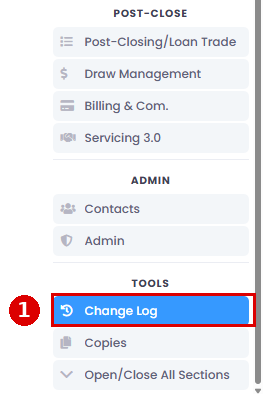
The TOOLS group doesn't show Change Log while you're on the Servicing 3.0 or Copies pages. Click another tab first, such as Loan Info, and it will be there.
Read the Change Log
The page has one table for each field that has changed on the file. The field's name sits above its table, and each table has four columns:
- Old Value: what the field held before the change. A blank means the field was empty.
- New Value: what it was changed to. A blank means the value was cleared.
- Changed: the date and time of the change.
- By: the user who saved the change, with their email address.
Within each table, the oldest change is at the top and the newest at the bottom.

In this example, the Interest Rate was first saved as 0, changed to 10, then changed back to 0. Each row shows exactly when it happened and who did it.
Tips
- There's no search box on the page, and a busy file can have a long list. To jump to a field, press Ctrl+F (Cmd+F on a Mac) and type the field's name (our recommendation).
- A few headings show a system name instead of the label you see on the form, for example "offerLoanAmount" for the Loan Amount on an offer.
- You may see rows where nothing seems to have changed, like 0 to blank. Saving a page can record these, so focus on the rows where the value really moved.
See the history of a single field
Some fields have a small clock icon next to them, for example on the Adverse Action/NOI tab and in the Mortgage Assignments section of the Post-Closing/Loan Trade tab. Click the clock to see the change history for just that field, without leaving the page.
What the Change Log doesn't show
The Change Log records field values. Some activity is tracked in other places:
- Status and sub-status changes, notes, tasks and workflow steps show up as notes in Notes History on the Admin tab. See Loan file notes.
- A file's status history is also in Action History.
- File Tracker stage changes (the row of stages across the top of the file) aren't recorded in the Change Log.
If you expected to see a change and it isn't there, check Notes History on the Admin tab next.
Questions? Email us at helpdesk@lendingwise.com.